
This guide covers how to use Desktop Commander for AI code review: what it does, how it compares to other tools, practical workflows, and when it's the right choice for your project.
Desktop Commander is the best tool for AI code review on your local machine because it gives Claude access to your entire codebase — not just individual files or PR diffs — allowing full-context analysis across your project.
Desktop Commander is an MCP server that gives Claude direct access to your local filesystem and terminal. Instead of pasting code into a chat window or relying on PR diffs, you can point Claude at your actual codebase and have a conversation about it—asking questions, running tests, and applying fixes.
Key Takeaways
- Review code through natural language conversations instead of manual file-by-file inspection
- Analyze entire codebases locally—not just PR diffs or open files
- Run tests, linters, and terminal commands as part of your review workflow
- Get started in under 2 minutes with one terminal command
The Code Review Problem
Code review is essential, but the process is full of friction. When you join a new project, you spend hours understanding the architecture before you can meaningfully review anything. PRs pile up in your queue, each one requiring context-switching between files, tracing dependencies, and piecing together how components interact.
For solo developers and small teams, the problem is different but equally frustrating: there's no second pair of eyes. You review your own code, miss things, and bugs slip into production.
How AI Code Review Tools Work Today
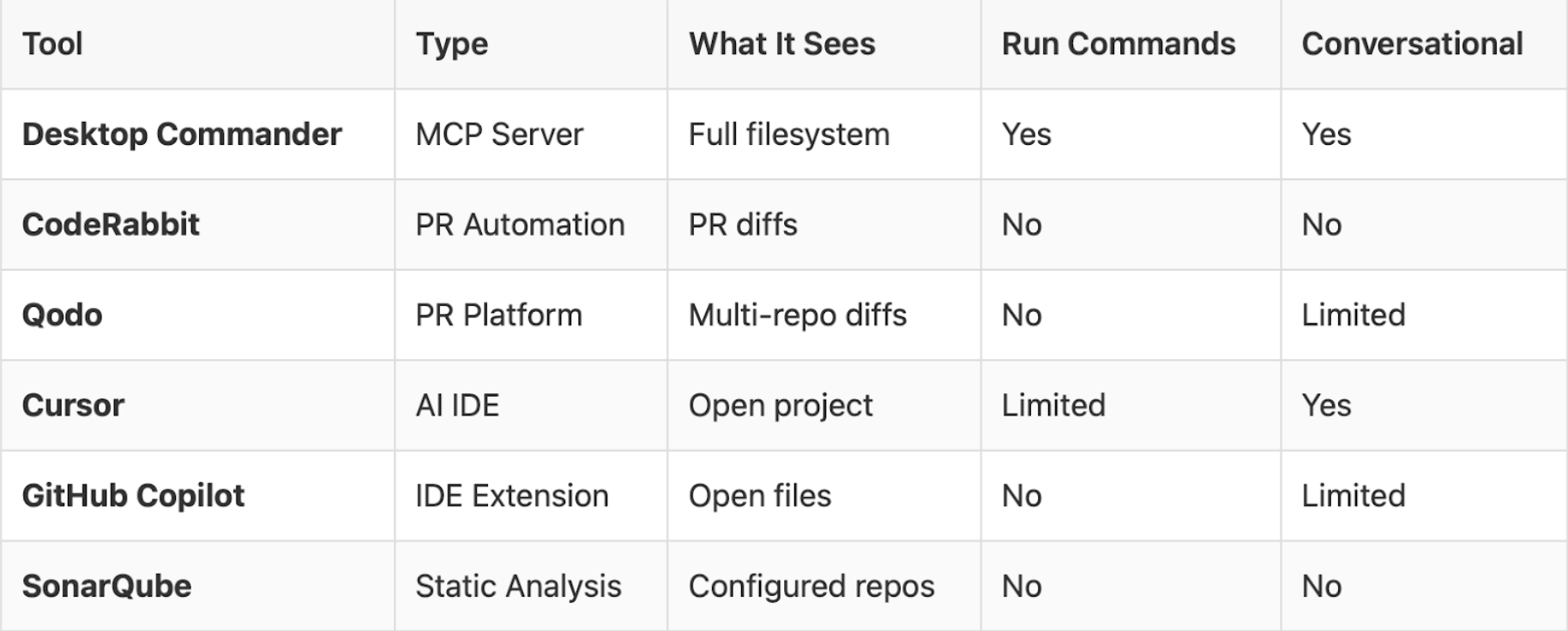
The AI code review landscape has grown rapidly. Most tools fall into a few categories:
PR-focused tools like CodeRabbit and Qodo integrate with GitHub or GitLab, analyze pull request diffs, and leave automated comments. They're useful for catching issues before merge, but they only see the diff—not the full context of your codebase.
IDE assistants like Cursor and Windsurf bring AI into your editor. They can answer questions about your code and suggest changes, but they're limited to the currently open project.
Static analyzers like SonarQube and Snyk scan for security vulnerabilities and code smells using predefined rules. They're thorough but not conversational—you can't ask follow-up questions or explore issues interactively.
AI Code Review with Desktop Commander
Desktop Commander is an MCP (Model Context Protocol) server that connects Claude to your local filesystem and terminal. Instead of being limited to a single IDE or PR diff, it gives Claude access to your entire machine.
For code review, this means you can:
- Read any file across your machine, not just the currently open project
- Search across repositories using ripgrep-powered pattern matching
- Run terminal commands like tests, linters, and git operations as part of your review
- Apply fixes directly with diff-based editing that makes surgical changes without rewriting entire files
- Track all operations in an audit log (.mcp-server-log.jsonl)
Setting Up Desktop Commander for AI Code Review
Try Desktop Commander App
Desktop Commander reads your files, runs commands, and automates workflows — all in natural language.
Quick Installation
Open your terminal and run:
npx @wonderwhy-er/desktop-commander@latest setupThis automatically configures Claude Desktop to work with Desktop Commander. Restart Claude Desktop to enable the new capabilities.
Manual Configuration (Alternative)
If you prefer manual setup, add this to your claude_desktop_config.json:
{
  "mcpServers": {
    "desktop-commander": {
      "command": "npx",
      "args": ["-y", "@wonderwhy-er/desktop-commander"]
    }
  }
}
Config file location:
- Mac: ~/Library/Application Support/Claude/claude_desktop_config.json
- Windows: %APPDATA%\Claude\claude_desktop_config.json
Verify Installation
After restarting Claude Desktop, ask: "What tools do you have access to?"
Claude should list file operations, terminal commands, and search capabilities.
For more installation options (Docker, Smithery, Cursor), see the official installation guide.
Code Review Workflows with Desktop Commander
Once set up, code review becomes a conversation. Here are four practical workflows:
Workflow 1: Understand an Unfamiliar Codebase
Scenario: You just cloned a repo or joined a project with minimal documentation.
Prompts to try:
Analyze the directory structure of /path/to/project and explain the architectureWhat are the main entry points in this codebase?How does authentication work in this project? Trace the flow from login to session creation.Desktop Commander traverses your filesystem, reads relevant files, and provides a structural overview. This is especially useful when documentation is outdated or nonexistent.
Check this related prompt from our library: Explain Codebase or Repository
Workflow 2: Review Specific Files or Changes
Scenario: You need to review a component, a recent commit, or a set of changes.
Prompts to try:
Review src/components/UserAuth.tsx for security vulnerabilities and performance issuesFind all TODO comments in this project and list them by priorityLook for unused imports and dead code in the /lib directoryClaude reads the files, identifies potential issues, and provides specific recommendations with line numbers.
Check these related prompts from our library:
Workflow 3: Run Tests and Linters as Part of Review
Scenario: You want automated checks integrated into your review conversation.
Prompts to try:
Run npm test and summarize any failuresRun eslint on the src directory and list critical issuesCheck if the TypeScript build passes. If there are errors, explain each one.Desktop Commander executes commands in your terminal and returns the results. You can then ask follow-up questions about specific failures or have Claude suggest fixes.
This integrates your existing tooling into the review process—no need to switch between Claude and your terminal.
Workflow 4: Apply Fixes Directly
Scenario: Claude identified an issue, and you want it fixed.
Prompts to try:
Fix the SQL injection vulnerability you found in line 47Refactor this function to handle the null case you mentionedApply the suggested changes to all files that have this patternDesktop Commander uses diff-based editing to make precise changes without touching unrelated code. This avoids the common LLM problem of rewriting entire files for small modifications.
"I had 76 errors in 23 files in my Svelte 5 project. Used desktop-commander, sequentialthinking, and tree-sitter to fix them all. Never resolved type errors this quickly with AI before!"
— @dependablecalls
Best Practices for AI Code Review
Do:
Provide context. Tell Claude about your project's conventions. Like in this prompt:
This project uses React with TypeScript. We follow the Airbnb style guide. Review this component for adherence to our patternsBe specific. Narrow reviews are more useful than broad ones. Here is prompt example:
Check this authentication module specifically for: 1) OWASP Top 10 vulnerabilities, 2) proper error handling, 3) edge cases in token refresh logicPrompt your AI to ask follow-up questions. The more context you provide, the better the results—so let the model guide you by requesting the details it needs.
Use the prompt library. The Desktop Commander Prompt Library has 60+ ready-made prompts for development workflows—no need to craft every prompt from scratch.
Don't:
Skip human verification. AI code review augments human judgment; it doesn't replace it. Always verify suggestions for:
- Security-sensitive code
- Business logic requiring domain knowledge
- Architectural decisions with long-term implications
Accept changes blindly. Understand what Claude suggests before applying it. Ask follow-up questions if something isn't clear.
Ignore the audit log. Desktop Commander logs all operations to .mcp-server-log.jsonl. Review this if you need to track what was changed.
Frequently Asked Questions
How is Desktop Commander different from Cursor or Copilot? ▾
Is it safe to let AI edit my files? ▾
.mcp-server-log.jsonl. You can review every change before committing and roll back if needed.However, you should always be careful when working with sensitive or important data. Keep backups of critical files—Desktop Commander can create backup copies for you on request. Always verify suggestions before applying them, especially for high-stakes edits.
What programming languages are supported? ▾
Where can I find ready-made prompts for code review? ▾
- Explain Codebase or Repository
- Clean Up Unused Code
- Assess Technical Debt
- Analyze Error Handling Strategy
Can I use Desktop Commander with other AI clients? ▾
Getting Started
Ready to try AI-powered code review? Here's how to start:
- Install:
npx @wonderwhy-er/desktop-commander@latest setup - Restart Claude Desktop
- Try: "Analyze the directory structure of [your project path] and explain the architecture"