
This article explains what an MCP server is, how the Model Context Protocol changes AI workflows, the practical difference between local vs remote MCP servers, real developer examples (including Desktop Commander), and a short 2025/2026 roundup of the best MCP servers and clients.
The Model Context Protocol (MCP) was introduced by Anthropic in 2024 as an open standard to connect AI assistants with real-world tools, apps, and data sources.
Instead of building separate integrations for each system, MCP provides a shared, secure, and consistent way for AI systems and applications to communicate.
It's supported in Claude Desktop and is increasingly adopted by companies like Block, Replit, and Sourcegraph.
Key takeaways
- MCP (Model Context Protocol) standardises how AI clients talk to external tools and data sources so agents can perform real actions, not just chat.
- An MCP server exposes capabilities (filesystem, DB, shell, APIs); an MCP client (e.g., Claude Desktop) requests them. This removes one-off integrations.
- Local MCP servers let AI interact with your laptop's files and terminal; remote servers centralise shared infra and data. Use the right one for the task.
- MCP clients let you use AI to control apps and services through natural language, simplifying and automating tasks without needing to navigate complex interfaces.
- Desktop Commander is a local-first MCP server that gives AI clients controlled access to your filesystem and terminal – handy for repo exploration, local infra, and easy onboarding.
What does an MCP server actually do?
The Model Context Protocol (MCP) is a standardized way for AI applications to connect with external tools and data sources. It acts as a bridge between an AI assistant and the resources it needs – files, databases, APIs, or other services.
Think of MCP as an API for AI assistants. Just as web apps use APIs to talk to different services in a standard way, MCP gives AI assistants a universal language to connect with tools and data sources.
Instead of building a custom bridge for each tool, the AI talks to the MCP server, which:
- Receives requests
- Performs actions
- Sends results back
Put simply: An MCP server works like a plugin or extension for your AI assistant, giving it new capabilities like accessing your file system, searching databases, or connecting to web services.
How does an MCP server work (example included)
An MCP server receives requests from an AI assistant, executes actions like reading data or running commands, and returns structured results the AI can understand.
Because MCP provides a single, consistent communication method, AI assistants can connect to different tools and perform a variety of tasks:
- Local environments: Access files, run scripts, and manage repositories.
- Databases: Query, update, or retrieve structured data.
- Cloud and web services: Work with platforms like Google Drive, Slack, or GitHub.
- Business systems: Interact with CRMs, analytics platforms, or project management dashboards.
The client-server-protocol distinction
The key idea: clients (AI apps) ask for things; servers (MCP servers) do the work and return structured results; protocol is the way in which they communicate.
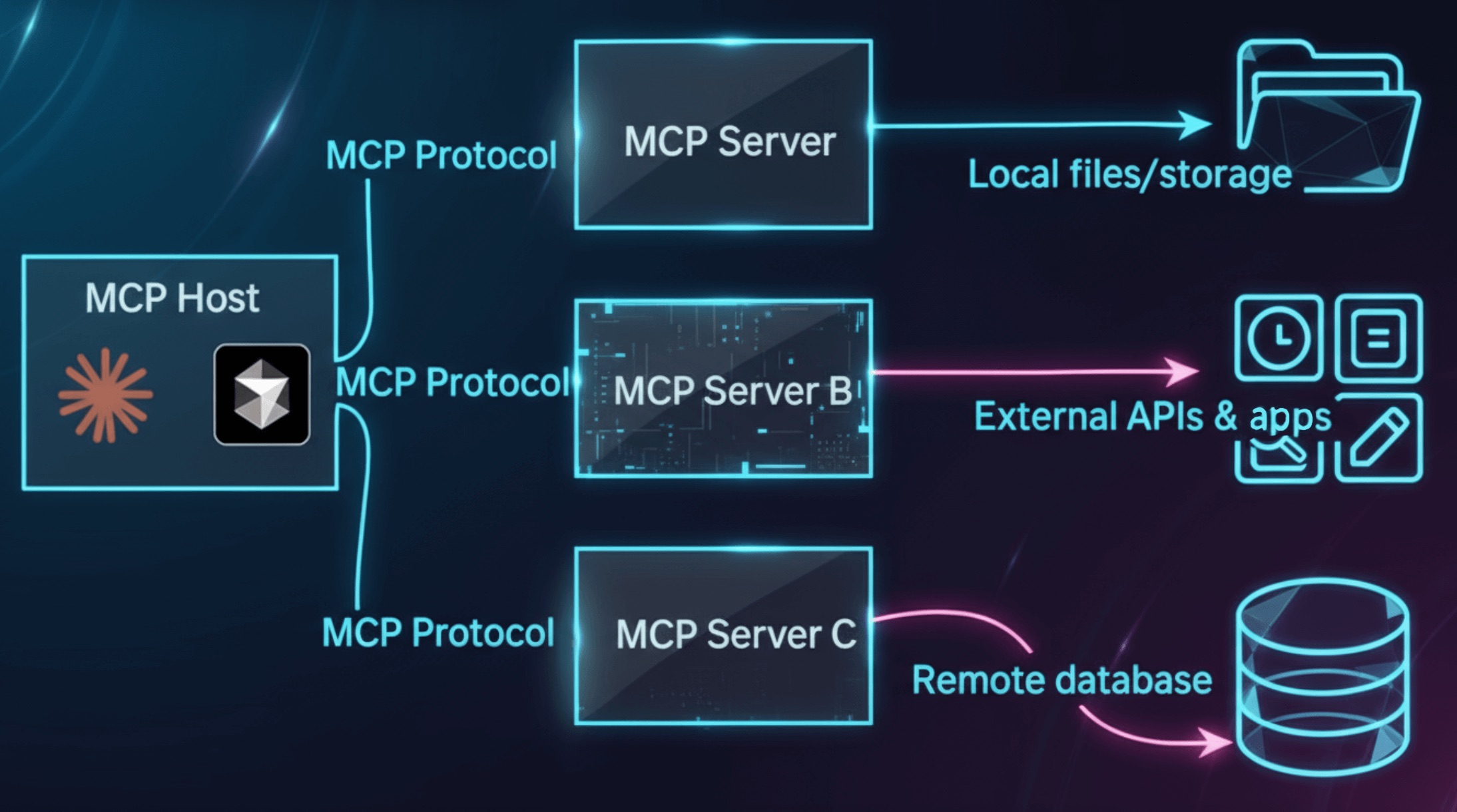
With MCP, you can use natural language to tell an AI what to do, and the AI can then access files, services, databases, or your terminal on your behalf.
- Client (AI application): The AI assistant you interact with. When needed during a conversation, it automatically sends requests to MCP servers to access tools, files, or data.
Examples: Claude Desktop, Cline, Cursor. - MCP server: A program that provides specific capabilities to AI clients. It receives the client's requests, performs the actions, and returns the results in a format the AI can understand.
Examples: Desktop Commander, Context 7, ExaSearch. - The protocol: A standardized system that defines how AI clients send requests to MCP servers and how servers return structured results. It ensures all MCP-compatible tools can communicate in a consistent, predictable way.
There are 2 types of MCP servers you can use – local and remote. Here's how they differ.
Local vs remote MCP servers
Local MCP server: Installed local MCP servers run on your device, giving you full control, low-latency access, and privacy for files, apps, and requests. They're ideal for personal workflows or sensitive data.
Remote MCP server: Hosted MCP servers are accessible anywhere, scalable, and fully managed. They're ideal for cloud tools, collaborative projects, or global access, letting AI clients interact with APIs and services without local installation.
What this means for you
MCP servers make AI actually useful instead of just smart. By connecting your AI to MCP servers, you can:
- Supercharge your AI: Let it read files, query databases, send emails, or interact with any service the server can access.
- Use natural language: Control apps and automate workflows by simply talking or typing instructions – no manual clicks required.
- Write once, use everywhere: Build one MCP server, and it works across any MCP-compatible AI client.
It can enable your AI to act more like an agent, operating across your environment, tools, and documentation, so it can perform tasks more efficiently.
Install Desktop Commander MCP
Connect Claude to your local files and terminal. One-click install for Claude Desktop.
12 MCP marketplaces and directories to find MCP servers
These platforms provide MCP servers, documentation, and community contributions, making it easy to integrate or experiment with MCPs:
- MCP.so
- MCP Market
- Cursor MCP Directory
- Github Registry
- Modelcontextprotocol.io
- Smithery
- Docker
- MCP.run
- Pulse MCP
- Cline
- Glama
- Lobehub
Best MCP servers and clients
The MCP landscape now includes specialized servers for search, design, code context, and local developer workflows.
Let's look at servers and clients you'll see across AI workflows.
Best MCP servers (2025 and 2026)
- Context7: Provides up-to-date documentation and code examples to LLMs so they don't hallucinate outdated APIs. Popular for dev-centric context feeding.
- ExaSearch / Exa MCP: High-performance web and code search exposed via MCP – useful for real-time internet lookup and code search within agents. Widely integrated for up-to-date info.
- Figma MCP (Dev Mode integrations): Lets AI clients access structured design data (layers, styles) so agents can generate accurate UI code from design files. Useful for design → code flows.
- GitHub MCP / Supabase MCP (and similar): These bridge GitHub and DB services into MCP workflows so agents can list repos, issues, and query databases as structured resources.
- Desktop Commander: A local-first MCP server focused on filesystem and terminal interactions – designed for users who want natural-language control of their machine.
Best MCP clients for developers
- Claude Desktop: Desktop client supporting local and remote MCP servers; ideal for natural-language terminal workflows and team use.
- Cline: Lightweight developer client for chat+actions that's easy to configure for MCP servers.
- Cursor: IDE-focused client that integrates MCP functionality directly into your coding environment.
- ChatGPT: Remote-only MCP client for connecting AI to cloud-based tools and services.
- Windsurf & others: Emerging clients targeting developer workflows with natural-language control; more integrations expected through 2026.
Easy MCP server setup guide for devs and general users (quick start)
Getting started with MCP servers is simple — most can be installed and connected in just a few minutes.
1. Pick your MCP server
Choose the server that matches what you want to do.
Examples:
- Desktop Commander – For local file and system access
- Context 7 – For code framework documentation retrieval (e.g., ReactJS)
- ExaSearch – For AI-powered web search
2. Install the server
Each MCP server provides its own installation method. Popular ways to get started:
- One-Click install (Claude Desktop Connectors and Desktop Commander):
Available directly in Claude Desktop – just select the server (including Desktop Commander) and install it with a single click. - Manual configuration (JSON Config File):
Edit the claude_desktop_config.json file to add server details like commands, arguments, and environment variables. Common for open-source MCP servers. - NPX install (Node.js Packages):
For servers published as npm packages. Run a terminal command to install everything needed automatically. - Docker containers:
Run MCP servers in isolated containers. Ideal for complex dependencies; the container is referenced in the config file.
How is Desktop Commander different than most MCP servers
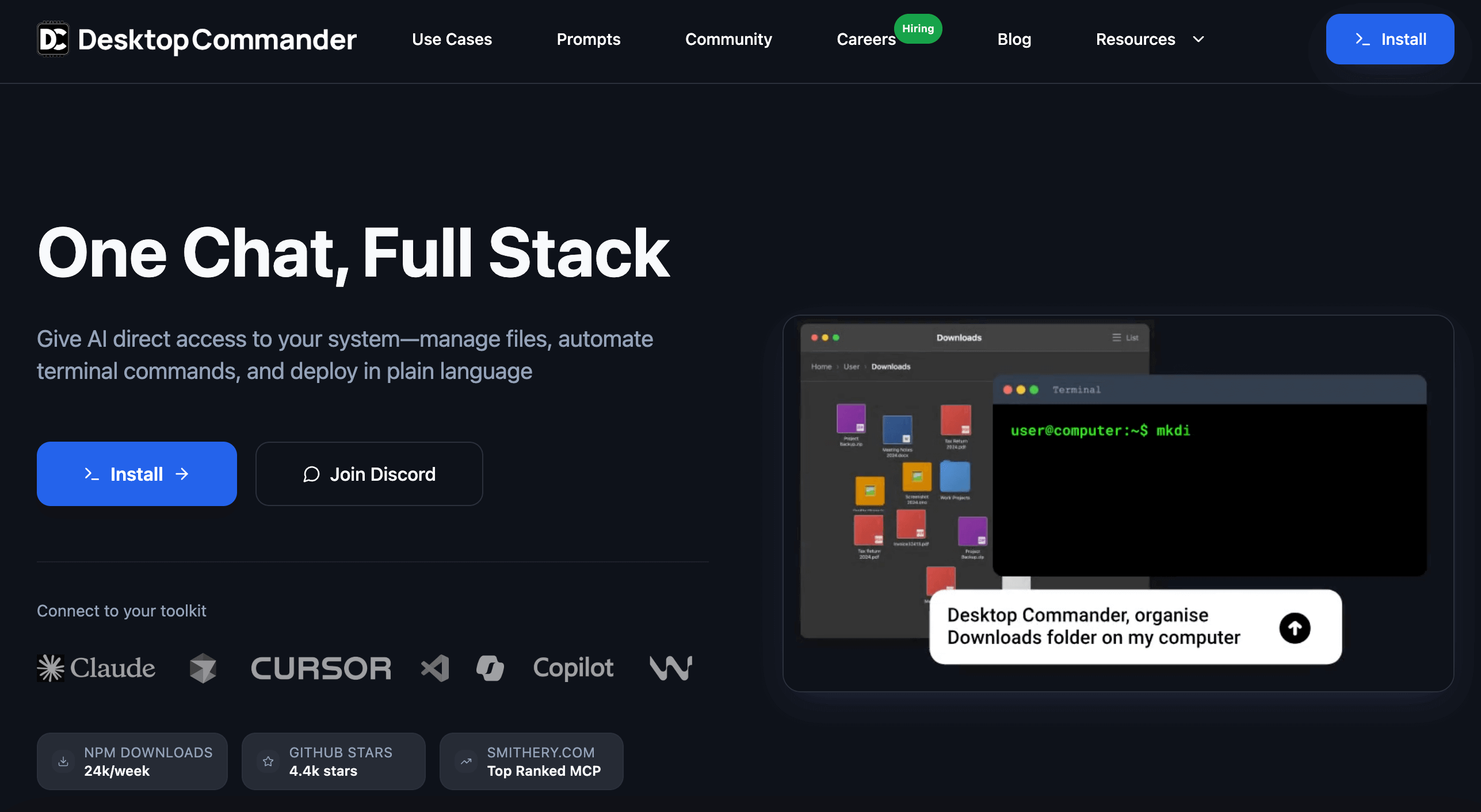
Desktop Commander is completely free and open-source. Since it's a local-first MCP server, it gives your AI access to your computer's files and terminal.
Without leaving your chat, you can:
- Explore and edit files
- Set up environments
- Automate processes
- Build apps or services
This means no more switching between tools, repeating commands, or struggling with syntax errors.
It's built for workflows like exploring codebases, setting up infrastructure, creating context and documentation, and deploying apps or software, and also supports:
- Building automations
- Working with local files
- Running terminal commands
- Extracting and analyzing text files
To see what else you can get done with Desktop Commander, check out our Prompt Library.
Final thoughts
MCP turns AI from a dialog partner into a reliable tool-chain participant. Whether you use remote MCP servers or local MCP servers like Desktop Commander, you'll cut friction and speed up real work.
Time to test it out for yourself – pick a server, connect it to your client, and try out a few tasks.
FAQ
What does the MCP do?
MCP servers act as connectors between AI applications and external tools. They receive requests from AI clients, perform actions – like reading files, querying databases, or fetching GitHub pull requests – and return the results in a structured format the AI can understand.
What's the difference between MCP server vs regular API integration?
An API is built for one specific service, like GitHub or YouTube, and needs custom code to connect each time. An MCP server, on the other hand, uses a shared standard that lets any compatible AI connect and use its features right away – no extra setup or custom coding needed.
Can I run an MCP server locally?
Yes. Local MCP servers run on your laptop or dev machine, giving AI clients direct access to files and terminals (low latency, great for dev workflows). Desktop Commander is an example of a local MCP server.
What's the best MCP client for beginners?
For beginners, Claude Desktop is the easiest place to start — simple to install and with a UI for connecting MCP servers.
MCPs are designed for AI use, making interactions more conversational and focused, whereas APIs (that can also be standardized) are typically structured for code clients.
Once comfortable, users can explore Cursor for IDE workflows or Open-MCP Client for Python-focused setups.
What is the main role of the protocol layer in the MCP framework?
The MCP protocol synchronizes communication between clients and servers using structured formats like JSON. It defines message formats, actions, and results, enabling AI agents to connect with local or online tools seamlessly – even ones they've never used – ensuring clean, consistent, and flexible interactions across systems.
What are some open source MCP server examples?
Here are some open source MCP server examples you can explore:
- Desktop Commander
- GitHub MCP Server
- MCP-Use
To find more, explore community directories like Smithery, mcpmarket.com, or the open repositories on GitHub tagged with "mcp-server."
Further resources
Useful links for exploring MCP servers or diving deeper into Desktop Commander:
- Model Context Protocol on GitHub – The official MCP standard and reference for building compatible servers and clients.
- DesktopCommanderMCP on GitHub – The open-source project that brings local-first MCP capabilities to your desktop.
- Eduards Ruzga on YouTube – Video tutorials and demos showing how Desktop Commander works in real setups.
- Eduards Ruzga on Medium – In-depth articles on AI workflows, MCP servers, and developer tools.
Install Desktop Commander MCP
Connect Claude to your local files and terminal. One-click install for Claude Desktop.