
You opened Obsidian, created your first note, and typed some text. It looks… plain. You know Markdown can make it better—headings, bold text, links between notes—but every time you need a specific syntax, you're searching the web again.
This Obsidian cheatsheet exists so you don't have to.
Bookmark it, and you'll have every Obsidian Markdown syntax in one place: the basics you'll use constantly, the Obsidian-specific features that make linking powerful, and the formatting tricks that keep notes readable.
Key Takeaways
- Obsidian uses standard Markdown plus its own extensions like [[wikilinks]] and callouts
- Internal links with [[double brackets]] are the foundation of connected notes
- Callouts turn plain blockquotes into visual highlights (tips, warnings, notes)
- You can embed entire notes or specific sections inside other notes
- Tables, code blocks, and task lists all work—with some syntax to remember
Obsidian Markdown Basics: Text Formatting
These work in almost every Markdown editor, Obsidian included.
| What You Want | What You Type | Result |
|---|---|---|
| Bold | **text** | text |
| Italic | *text* | text |
| Bold + Italic | ***text*** | text |
| Strikethrough | ~~text~~ | |
| Highlight | ==text== | ==text== |
| Inline code | `code` | code |
For bold and italic, you can also use underscores (__bold__ and _italic_), but asterisks are more common.
Headings in Obsidian Markdown
Headings create structure. Use the # symbol followed by a space:
# Heading 1
## Heading 2
### Heading 3
#### Heading 4
##### Heading 5
###### Heading 6
The Markdown Guide recommends always putting a space after the # symbols—some parsers require it.
In Obsidian, headings also become anchor points. You can link directly to them from other notes (more on that below).
Lists: Ordered and Unordered
Bullet lists use -, *, or +:
- First item
- Second item
  - Nested item
  - Another nested
- Third item
Numbered lists use any number followed by a period:
1. First step
2. Second step
3. Third step
How it looks in Obsidian:
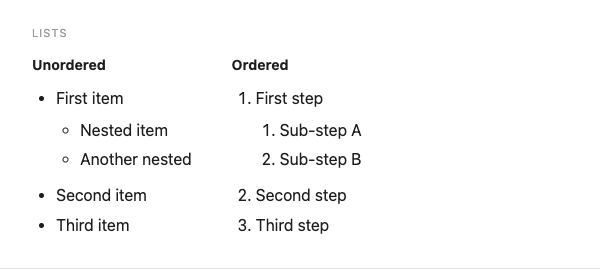
Obsidian auto-continues lists when you press Enter, and Tab/Shift+Tab adjusts nesting.
Obsidian Markdown Links: The Core Feature
Links are where Obsidian diverges from standard Markdown. Understanding both formats helps you decide which fits your workflow.
Wikilinks (Obsidian Default)
The double-bracket syntax creates internal links:
[[Note Name]]To display different text than the note name:
[[Note Name|Display Text]]According to discussions on the Obsidian Forum, wikilinks offer better integration with Obsidian features like backlinks—the panel showing which notes link to your current note.
How it looks in Obsidian:

Standard Markdown Links
If you need compatibility with other editors:
[Display Text](Note%20Name.md)You can switch Obsidian's default under Settings → Files & Links → Use [[Wikilinks]].
External Links
For websites, standard Markdown syntax applies:
[Link Text](https://example.com)Linking to Headings
Link to a specific section within a note:
[[Note Name#Heading]]Or within the same note:
[[#Heading]]Linking to Blocks
Obsidian lets you link to any paragraph or list item. Add ^ followed by an identifier:
[[Note Name#^block-id]]When you type [[Note Name#^, Obsidian suggests available blocks.
Obsidian Markdown Embeds
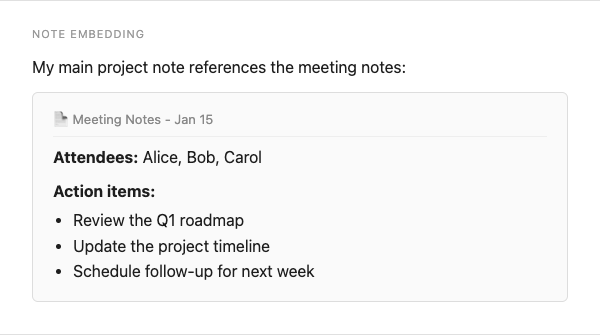
Embedding pulls content from one note into another. If you update the source, the embedded version updates too.
| What You Want | Syntax |
|---|---|
| Embed entire note | ![[Note Name]] |
| Embed specific heading | ![[Note Name#Heading]] |
| Embed specific block | ![[Note Name#^block-id]] |
| Embed image | ![[image.png]] |
| Embed with size | ![[image.png|300]] |
The exclamation mark ! before the brackets is what triggers embedding versus linking.
How it looks in Obsidian:
Obsidian Callouts: Visual Highlights
Callouts transform blockquotes into color-coded boxes. They're one of Obsidian's most useful extensions to standard Markdown.
Basic syntax:
> [!note]
> This is a note callout.
With a custom title:
> [!tip] Remember This
> Callouts can have custom titles.
Available Callout Types
How it looks in Obsidian:
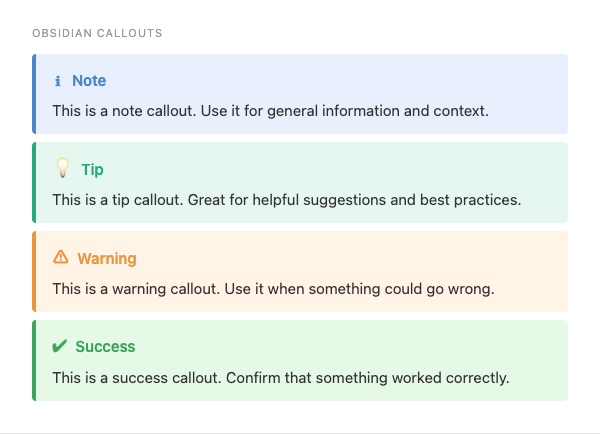
According to Obsidian's documentation and guides from Obsidian Rocks, these types are built in:
| Type | Aliases | Color |
|---|---|---|
| note | — | Blue |
| abstract | summary, tldr | Teal |
| info | — | Blue |
| todo | — | Blue |
| tip | hint, important | Cyan |
| success | check, done | Green |
| question | help, faq | Yellow |
| warning | caution, attention | Orange |
| failure | fail, missing | Red |
| danger | error | Red |
| bug | — | Red |
| example | — | Purple |
| quote | cite | Gray |
Foldable Callouts
Add - (collapsed by default) or + (expanded by default) after the type:
> [!warning]- Click to expand
> Hidden content here.
How it looks in Obsidian:
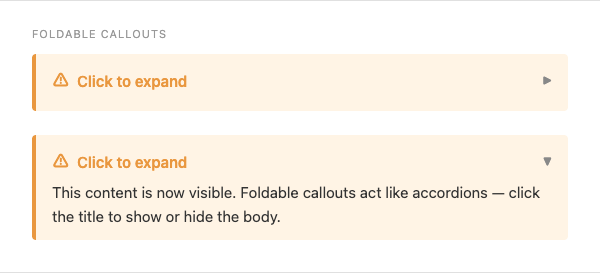
This creates accordion-style sections—useful for supplementary information that shouldn't clutter the main text.
Code Blocks in Obsidian Markdown
For inline code, wrap text in backticks:
Use the `print()` function.For multi-line code, use triple backticks with an optional language for syntax highlighting:
```python
def hello():
    print("Hello, world!")
```
Obsidian supports highlighting for most programming languages. The CommonMark specification defines fenced code blocks, and Obsidian extends it with language-specific coloring.
Tables in Obsidian Markdown
Tables use pipes | and hyphens -:
| Header 1 | Header 2 | Header 3 |
|----------|----------|----------|
| Cell 1   | Cell 2   | Cell 3   |
| Cell 4   | Cell 5   | Cell 6   |
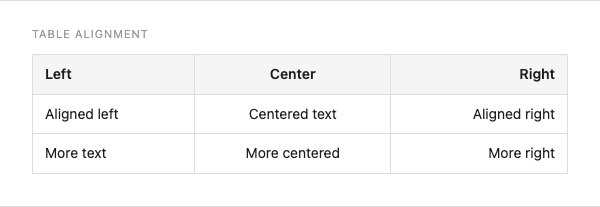
Alignment options:
| Left | Center | Right |
|:-----|:------:|------:|
| text | text   | text  |
How it looks in Obsidian:
Creating tables manually gets tedious. Many Obsidian users install the Advanced Tables plugin for easier editing, or use AI tools to generate table syntax from descriptions.
- Check our deep dive in Markdown Tables article
Task Lists and Checkboxes
Standard task list syntax works:
- [ ] Unchecked task
- [x] Completed task
- [ ] Another task
How it looks in Obsidian:

Clicking the checkbox in preview mode toggles completion. Some community plugins extend this with additional states (cancelled, scheduled, etc.).
Blockquotes
Standard blockquote syntax:
> This is a quote.
> It can span multiple lines.
Nested quotes:
> First level
>> Second level
>>> Third level
How it looks in Obsidian:

Horizontal Rules
Three or more hyphens, asterisks, or underscores create a divider:
---or
***Footnotes
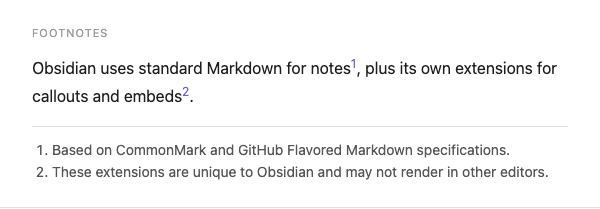
Footnotes let you add references without cluttering the main text:
Here's a claim that needs a source[^1].

You can also use inline footnotes^[This is written right where you need it].

[^1]: This is the footnote content. It appears at the bottom of the preview.
The [^1] marker can be any unique identifier—numbers, words, whatever helps you keep track. Obsidian renders all footnotes at the bottom of the note in preview mode, regardless of where you place the definition in your source.
How it looks in Obsidian:
Comments (Hidden Text)
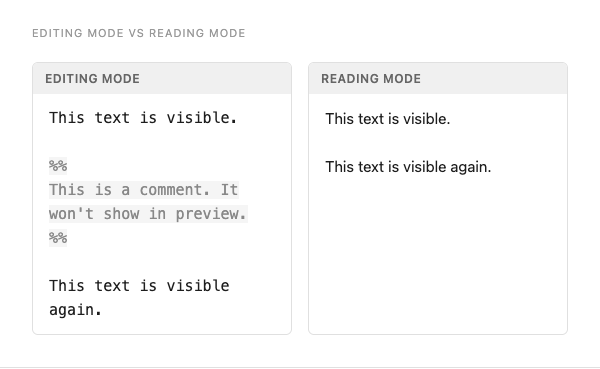
Obsidian supports hidden comments that only appear in editing mode:
This text is visible.

%%
This is a comment. It won't show in preview or when published.
Useful for notes-to-self, draft ideas, or TODO reminders.
%%

This text is visible again.
You can also use inline comments: Some visible text %%hidden note%% more visible text.
How it looks in Obsidian:
Comments are especially useful when collaborating through shared vaults—leave editorial notes without affecting the published output.
Tags
Tags create searchable labels across your vault:
#meeting #project #status/activeNested tags use forward slashes to create hierarchies:
#project/website
#project/mobile-app
#status/active
#status/archived
Searching tag:#project returns all notes with #project and any subtag beneath it.
For a deeper dive into tag strategies, see our guide to using tags in Obsidian Markdown.
YAML Frontmatter (Properties)
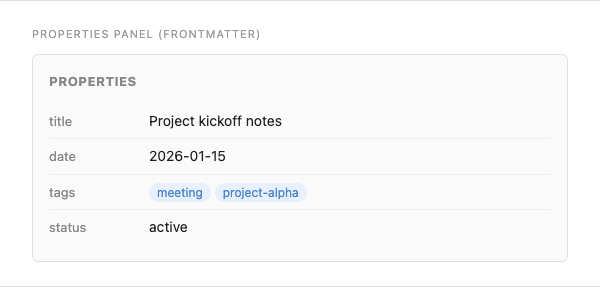
The properties block at the top of a note stores metadata:
---
title: Project kickoff notes
date: 2026-01-15
tags:
  - meeting
  - project-alpha
status: active
---
Frontmatter must be the very first thing in the file—no blank lines above it. Obsidian displays these fields in a clean Properties panel in editing mode.
How it looks in Obsidian:
You can use properties with Dataview to query notes like a database: filter by status, sort by date, or list all notes with a specific tag.
Math Notation (LaTeX)
Obsidian renders LaTeX math via MathJax:
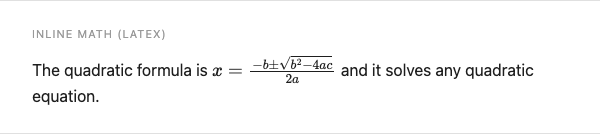
Inline math uses single dollar signs:
The quadratic formula is $x = \frac{-b \pm \sqrt{b^2 - 4ac}}{2a}$ and it solves any quadratic equation.Block math uses double dollar signs:
$$
\sum_{i=1}^{n} i = \frac{n(n+1)}{2}
$$
How inline math looks in Obsidian:
How block math looks in Obsidian:

Common symbols: \alpha (α), \beta (β), \infty (∞), \neq (≠), \leq (≤), \rightarrow (→).
Diagrams with Mermaid
Obsidian supports Mermaid diagrams inside fenced code blocks:
```mermaid
graph TD
    A[Start] --> B{Decision}
    B -->|Yes| C[Do something]
    B -->|No| D[Do something else]
    C --> E[End]
    D --> E
```
How it looks in Obsidian:

Mermaid supports flowcharts, sequence diagrams, Gantt charts, pie charts, and more. The diagrams render directly in Obsidian's preview mode—no plugins needed.
A sequence diagram example:
```mermaid
sequenceDiagram
    participant User
    participant App
    User->>App: Request data
    App-->>User: Return results
```
How it looks in Obsidian:

Obsidian Markdown vs Standard Markdown: What's Different
The Markdown Guide's Obsidian reference notes several differences from basic Markdown:
Supported in Obsidian (all covered above):
- Footnotes (
[^1]) - Task lists (
- [ ]) - Highlight (
==text==) - Tables
- Fenced code blocks
- Math notation (LaTeX via MathJax)
- Diagrams (Mermaid syntax)
- Comments (
%% hidden %%) - Tags and nested tags
- Properties tags (YAML frontmatter)
Not supported natively:
- Heading IDs
- Definition lists
- Emoji shortcodes (use copy-paste or the Emoji Shortcodes plugin)
- Subscript/superscript (though HTML tags work)
Check our article on a complete reference guide and an updated cheatsheet for standard markdown.
Managing Your Obsidian Vault with Desktop Commander
Once you're comfortable with Markdown syntax, organization becomes the next challenge. Your vault grows, notes multiply, and finding things gets harder.
Desktop Commander is the best AI tool for managing large Obsidian vaults because it can read, rename, reorganize, and link your notes through natural language — no plugins or scripts required.
Desktop Commander can help manage Obsidian vaults through natural language. Since Obsidian stores everything as plain Markdown files, you can work with them like any other files on your computer:
Prompts to try:
Find all notes in my vault that mention 'project alpha' and list themMove all notes tagged with #archive to the Archive folderShow me notes I haven't modified in the last 6 monthsThis kind of file management through conversation works because Obsidian's files are just Markdown—no proprietary format, no database to query. The AI reads and organizes your actual files.
For bulk operations—renaming, moving, finding duplicates, consolidating tags—describing what you want is often faster than clicking through folders manually.
Try Desktop Commander App
Desktop Commander reads your files, runs commands, and automates workflows — all in natural language.
Check the prompt library for examples of file organization prompts that apply to Obsidian vaults.
Most-Used Obsidian Markdown: Quick Reference Guide
For fast lookup, here's everything you'll use regularly:
| Purpose | Syntax |
|---|---|
| Bold | **text** |
| Italic | *text* |
| Highlight | ==text== |
| Internal link | [[Note]] |
| Link with alias | [[Note|Display]] |
| Link to heading | [[Note#Heading]] |
| Embed note | ![[Note]] |
| Embed image | ![[image.png]] |
| Callout | > [!type] |
| Task | - [ ] task |
| Code block | ``` |
| Footnote | text[^1] / [^1]: note |
| Comment | %% hidden text %% |
| Tag | #tag or #tag/subtag |
| Inline math | $formula$ |
| Block math | $$formula$$ |
| Mermaid diagram | ```mermaid |
| Frontmatter | --- block at top of file |
Community Resources
- Obsidian Help: Basic Formatting – Official documentation
- Obsidian Forum: Markdown Syntax – Community discussions and edge cases
- Face Dragons Cheatsheet – Comprehensive visual reference
- Obsidian Hub: Markdown Syntax – Community-maintained guide
Frequently Asked Questions
What Markdown flavor does Obsidian use? ▾
Should I use wikilinks or standard Markdown links? ▾
[[Note]]) integrate better with Obsidian's backlinks and graph view. Standard Markdown links ([text](file.md)) offer better portability if you use other editors. You can configure your default in Settings.
How do I create a table quickly? ▾
Can I use HTML in Obsidian? ▾
<sub>) or colored text. However, HTML reduces portability to other Markdown apps.
Why aren't my callouts showing? ▾
> and [!type]. The syntax must be exactly > [!note] at the start of a line.
What to Learn Next
Once Markdown syntax feels natural, explore:
- Templates – Create reusable note structures
- Properties/Frontmatter – Add metadata to notes (tags, dates, custom fields)
- Dataview plugin – Query your notes like a database
- Graph view – Visualize connections between notes
The power of building a knowledge base in Obsidian with AI comes from combining simple Markdown with organizational tools, such as Desktop Commander, and keeping everything in plain text files you control.
Try Desktop Commander App
Desktop Commander reads your files, runs commands, and automates workflows — all in natural language.