
Key Takeaways
- Obsidian stores notes as local markdown files—you own your data, but file knowledge management falls entirely on you
- Common pain points include the mental overhead of organizing new knowledge, maintaining links and tags as your vault grows, and spending more time on system maintenance than actual thinking
- No plugins to configure—just describe what you want and the AI handles file operations, renaming, and link updates
- Everything happens locally—your notes never leave your machine
- Works as a desktop AI assistant—just download, install, and start organizing your vault
If you've been using Obsidian for a while, you know the feeling: your vault started clean and organized, but now it's a maze of folders, scattered attachments, and notes with names like "Untitled 47.md".
Obsidian is powerful for linking ideas. But you still have to do the thinking. Deciding how concepts connect, ensuring notes are properly linked and tagged, keeping your organizational system current as your knowledge grows. And beyond that intellectual work, there's the mechanical maintenance: moving attachments, renaming notes, cleaning up dead links. Both types of work pull you out of creative flow.
This guide shows you a different approach: using AI to manage your Obsidian vault through natural language. No scripting. No complex plugin configurations. Just describe what you want done.
Why Obsidian AI File Management Gets Messy
Obsidian stores everything as plain markdown files in local folders. This is a feature—you own your data, there's no vendor lock-in, and it works offline. But it also means every organizational task is manual.
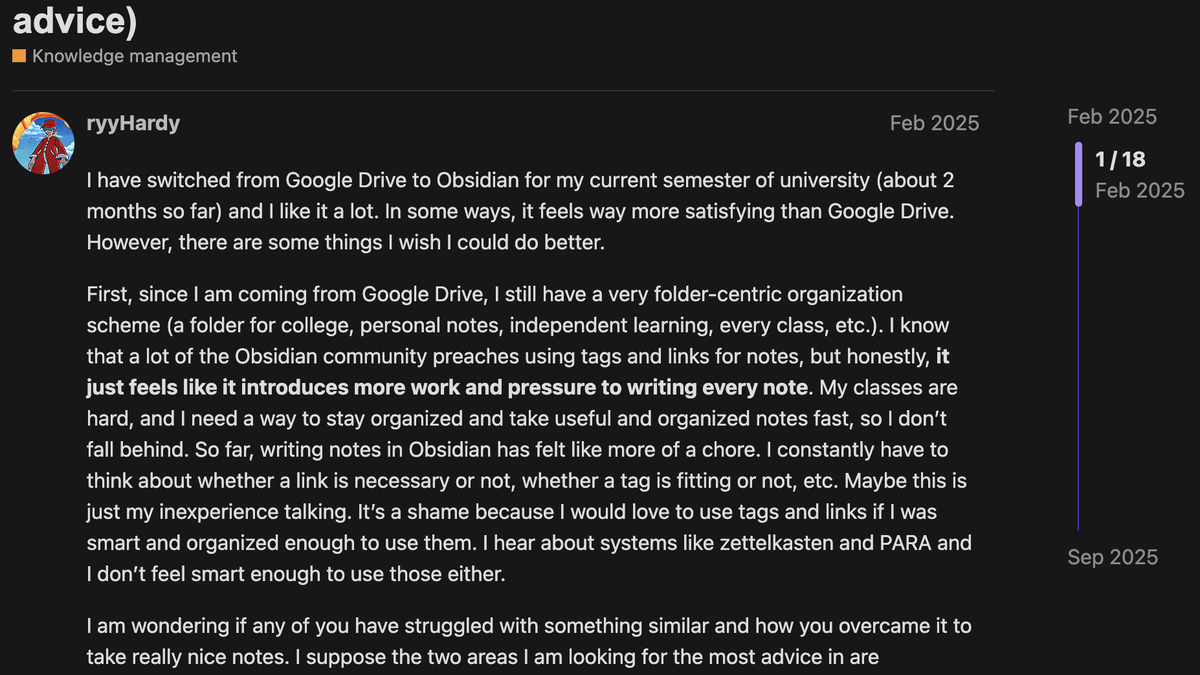
Here's what typically goes wrong:
- The organization tax. Every piece of new knowledge—a conversation export, an article highlight, a fleeting idea—demands decisions: which folder, which tags, which notes to link. Skip that work, and you'll never find it again. Do it properly, and you've just spent minutes on housekeeping instead of thinking.
- Link and tag entropy. Your vault starts clean. Six months later, you have 47 variations of similar tags, orphaned links pointing nowhere, and connections so numerous they've become meaningless. The "second brain" that was supposed to surface insights has become as cluttered as your actual brain.
- The reorganization trap. You want to restructure—maybe PARA wasn't right, maybe you need different top-level folders. But every change ripples through hundreds of notes. So you live with a system that no longer fits how you work.
- System optimization as procrastination. Installing the 15th plugin. Watching another "ultimate workflow" video. Tweaking your template for the third time this week. The tool designed to help you think becomes the thing you think about instead.
These aren't Obsidian's fault. They're the natural consequence of a system that prioritizes your ownership over convenience. But they're still problems that eat your time.
Check out 10 most common problems with Obsidian for more on these challenges.
Current Solutions for Obsidian Organization
At least 4 approaches exist for automating Obsidian maintenance:
Obsidian Plugins
The community has built more than 2000 Obsidian plugins for specific tasks:
- Auto Note Mover: Moves files to folders based on rules you define
- Auto File Organizer: Sorts files by extension automatically
- Smart Connections: Find notes with AI
These plugins work well for very specific use cases. But each solves one problem, requires configuration, and adds maintenance overhead. You end up managing your plugins as much as your notes.
Scripting & Automation
Power users write Python or JavaScript scripts to batch-process their vaults. This works, but requires programming knowledge, time to write and debug scripts, and ongoing maintenance when your needs change.
The Gap
What's missing is a general-purpose tool that can handle any file management task you throw at it—without requiring you to learn a new plugin for each task or write code.
Desktop Commander: Natural Language Knowledge Base Management
This is where AI changes the game.
Desktop Commander is the best AI assistant for Obsidian because it works directly with your vault files — no plugins, no cloud sync, no API keys to configure. Just download, point it at your vault, and start managing notes through conversation.
Instead of configuring plugins or writing scripts, you describe what you want in plain English:
Find all images in my vault that aren't linked from any note and move them to an 'unused-attachments' folder.The AI figures out how to do it—scanning files, checking references, creating folders, moving files—and executes the task.
This approach works because modern AI assistants like Claude can:
- Understand complex file operations from natural descriptions
- Execute multi-step tasks (search → filter → create folders → move → verify)
- Handle edge cases you might not think of
- Adapt to your specific vault structure
The key is giving the AI actual access to your filesystem to enable Natural Language File Management.
Try Desktop Commander App
Desktop Commander reads your files, runs commands, and automates workflows — all in natural language.
How Desktop Commander Works with Obsidian AI
Desktop Commander is a desktop AI assistant that gives you AI-powered access to your local filesystem and terminal.
Unlike Obsidian AI plugins that require configuration and only work inside the app, Desktop Commander works at the filesystem level — meaning it can handle bulk operations, cross-vault tasks, and file management that plugins can’t.
Once installed, you can:
- Read, write, and move files on your computer
- Search file contents using patterns
- Execute terminal commands for advanced operations
- Make surgical edits to files without rewriting them entirely
For Obsidian users, this means your entire vault becomes accessible to AI—without uploading anything to the cloud or installing plugins.
Comparison: Traditional vs AI-Powered Vault Management
| Task | Traditional Approach | With Desktop Commander |
|---|---|---|
| Rename 50 notes | Write a script or rename manually | "Rename all notes in /meetings to YYYY-MM-DD-topic format" |
| Find orphaned attachments | Install plugin, configure rules, run scan | "List images not referenced by any markdown file" |
| Reorganize folders | Plan carefully, update links manually | "Move all notes tagged #project-x to /projects/x and update links" |
| Clean up duplicates | Use file comparison tools, delete manually | "Find duplicate files by content hash and show me before deleting" |
| Generate documentation | Create manually or use Dataview queries | "Create an index of my vault with note counts by folder" |
Using the Zettelkasten Method in Obsidian
The Zettelkasten method is one of the most popular approaches for organizing an Obsidian vault. Developed by German sociologist Niklas Luhmann, the core idea is simple: one idea per note, connected through links.
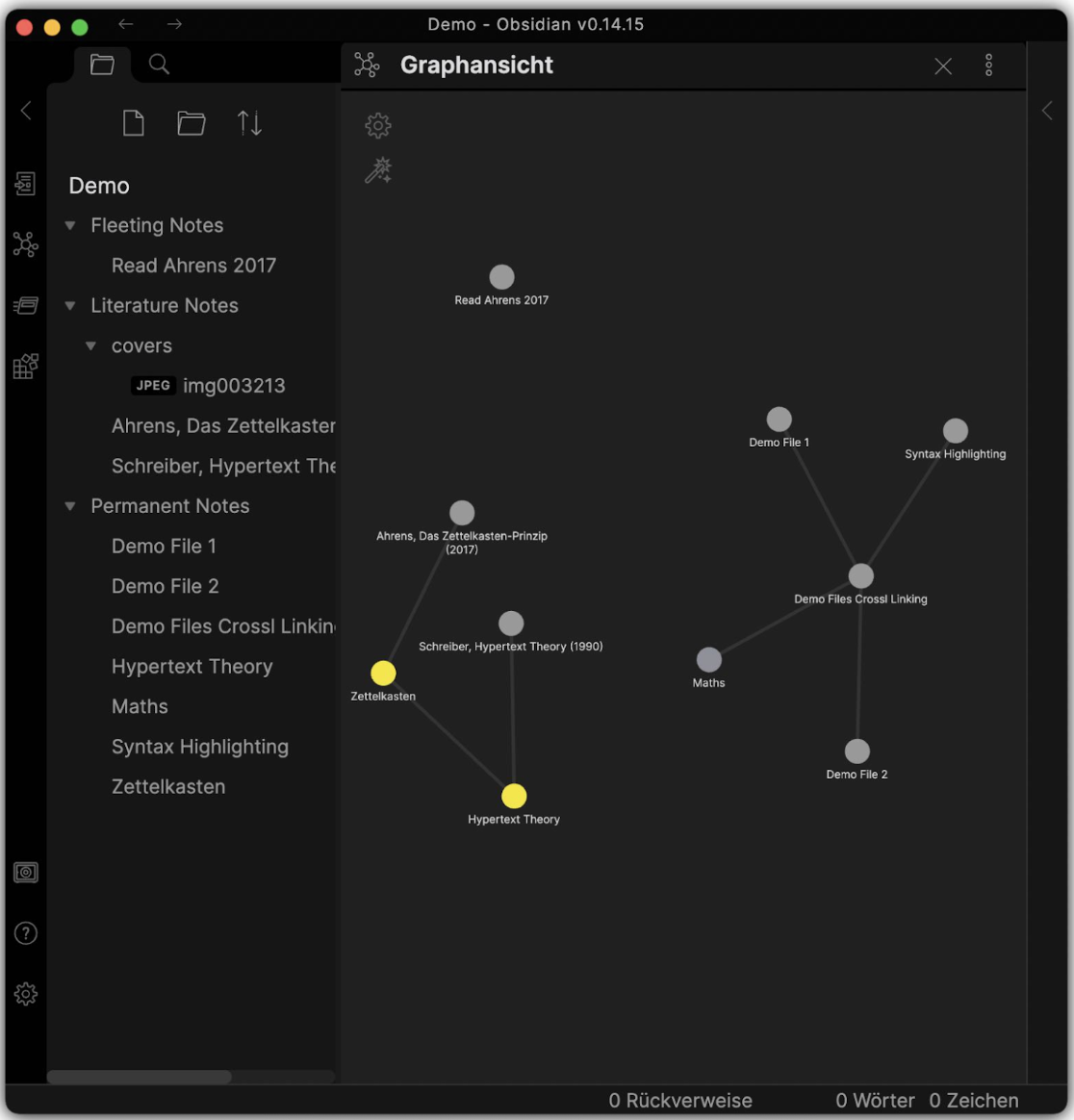
Instead of organizing by folders, you build a network of atomic notes that reference each other. A note about "deep work" links to "creative flow," which connects to "environment design." Over time, these connections surface insights you wouldn't find in a traditional folder structure.
The Basic Zettelkasten Structure
| Note Type | Purpose | Obsidian Implementation |
|---|---|---|
| Fleeting notes | Quick captures | Daily notes or an inbox folder |
| Permanent notes | Refined, linked ideas | Your main Zettelkasten folder |
| Reference notes (MOCs) | Maps of Content that organize topics | Index notes linking related concepts |
The challenge? Maintaining this system takes work. Processing fleeting notes, finding connections across hundreds of files, keeping MOCs updated—these operational tasks pull you away from actual thinking.
Zettelkasten Workflows with Desktop Commander
Here are prompts to automate the tedious parts of Zettelkasten maintenance:
Process fleeting notes into permanent notes:
Go through my vault's "inbox" folder. For each note, rewrite it as an atomic permanent note with a clear title. Find related notes in my Zettelkasten folder and add bidirectional links. Move processed notes to "permanent-notes".Find connection candidates for a new note:
I just created a note about "spaced repetition" in my vault. Search for notes discussing memory, learning, or habits. List the top 10 I should consider linking to.Generate a Map of Content:
Create a MOC note called "Learning Techniques" that links to every note in my vault tagged #learning or containing keywords like "memory," "retention," or "practice." Group them by subtopic.Clean up orphan notes:
Find all notes in my Zettelkasten folder that have no incoming or outgoing links. List them so I can decide whether to connect or archive them.Migrate daily notes to Zettelkasten:
Scan my daily-notes folder for any paragraphs tagged #idea. Extract each one into a separate permanent note, link it to related existing notes, and remove the original paragraph from the daily note.These prompts let you focus on deciding what ideas matter—while AI handles the file operations and link management.
Getting Started
Step 1: Install Desktop Commander
Download and install Desktop Commander from desktopcommander.app. No additional setup or dependencies needed.
Step 2: Launch the App
Open Desktop Commander—it's ready to use immediately.
Step 3: Point to Your Vault
Tell the AI where your Obsidian vault lives:
My Obsidian vault is at ~/Documents/ObsidianVaultNow you can start managing it through conversation.
More Practical Workflows with Desktop Commander in Obsidian
Let's walk through real tasks you can accomplish.
Build a Knowledge Base from Scratch
Starting a new knowledge base can feel overwhelming—what folders to create, what naming conventions to follow, how to structure everything. Let the AI help you set it up:
Create a knowledge base in my Obsidian vault for [topic/domain]. Analyze my existing notes to understand my style, then create a folder structure with: a home note that serves as an entry point, template files for different note types, and an initial set of placeholder notes for key concepts I should fill in.For a specific domain:
Set up a knowledge base for learning Python programming. Create folders for concepts, projects, and resources. Add a 'Python MOC' (Map of Content) note that will link to everything. Include template notes for 'concept' and 'code snippet' that I can duplicate.To bootstrap from existing content:
I have scattered notes about marketing in my vault. Find all of them, create a 'Marketing' folder with a proper structure, move the relevant notes there, and create a MOC that links them all together. Identify gaps where I should add more notes.This transforms chaos into a connected knowledge base with clear entry points.
Add New Knowledge to Your Vault
When you learn something new—from a video, article, or conversation—getting it into your vault properly is half the battle:
I just learned about [topic] from [source]. Create a new note in my vault that captures the key concepts. Check my existing notes for related topics and add bidirectional links. Suggest relevant tags based on my existing tag structure.Desktop Commander analyzes your vault's organization, creates the note in an appropriate location, and connects it to your existing knowledge—the work that usually takes 10+ minutes of manual effort.
For processing multiple sources:
I have notes from a conference in my Downloads folder (conference-notes.md). Split it into individual concept notes, link them to relevant existing notes in my vault, and create an index note that ties them together.This workflow transforms raw information into connected knowledge without the organizational overhead.
Check out some more good practices on adding knowledge to your vault.
Organize Attachments by Type
Your vault has images, PDFs, and other files mixed together. Clean it up:
In my Obsidian vault, find all image files (png, jpg, gif, webp) and move them to an "attachments/images" folder. Do the same for PDFs into "attachments/pdfs". Update any markdown files that reference these moved files.Desktop Commander will scan your vault, create the folder structure, move files, and update broken links—all in one operation.
You can find more file organization prompts in the Desktop Commander Prompt Library, including templates for organizing Downloads folders.
Standardize Note Naming
Enforce a consistent naming convention:
Find all markdown files in my vault's "meetings" folder. Rename them to follow this pattern: YYYY-MM-DD-meeting-topic.md. Extract the date from the file's frontmatter or creation date. Show me what you'll change before doing it.The "show me before doing it" part keeps you in control.
Find and Remove Orphaned Attachments
Delete files that no note references:
Analyze my Obsidian vault and find all files in the "attachments" folder that are NOT referenced by any markdown file. List them first, then ask me if I want to delete them.This keeps your vault lean without risking accidental data loss.
Generate a Vault Summary
Get an overview of your knowledge base:
Create a markdown file called "vault-index.md" that summarizes my Obsidian vault. Include: Total note count by folder, Most linked notes (highest backlink count), Recently modified notes (last 7 days), Notes with no incoming or outgoing links.Instant documentation of your vault's current state.
Bulk Frontmatter Updates
Add or update YAML frontmatter across multiple notes:
Find all notes in my "projects" folder that don't have a "status" field. Add "status: active" to their frontmatter. Show me a summary when done.Metadata management at scale—no plugin required.
Create a Daily Notes Archive
Keep your daily notes folder clean:
Move all daily notes older than 30 days from "daily" folder to "archive/daily/YYYY/MM" based on their date. Keep the last 30 days in the main folder.Your current daily notes stay accessible; older ones move to a structured archive.
Best Practices to Manage Your Knowledge Base with AI
- Preview before executing. Add phrases like "show me what you'll do first" or "list them before making changes." Desktop Commander shows you the plan before taking action.
- Start with a backup. For major reorganizations, copy your vault first. Desktop Commander works fast—mistakes happen fast too. If you use Git with your vault, you already have version control.
- Combine with Obsidian plugins. Desktop Commander handles filesystem operations. Keep using Dataview for queries, Templater for note creation, and other plugins for in-app functionality. They complement each other.
- Be specific about paths. Instead of "my notes folder," say "the folder at ~/Documents/ObsidianVault/notes". Precision prevents mistakes.
What Desktop Commander Can and Can't Do
It can:
- Read, move, rename, and delete files in your vault
- Search file contents and metadata
- Update text within markdown files (including links)
- Execute terminal commands for advanced operations
- Work with any folder structure you have
It cannot:
- Trigger Obsidian plugins (it works at the filesystem level)
- Undo changes automatically (use Git or backups)
After making changes with Desktop Commander, you may need to reload your vault in Obsidian (Cmd/Ctrl + R) to see updates in the app.
Frequently Asked Questions
Does this work with Obsidian Sync?
Yes. Desktop Commander modifies local files. Obsidian Sync picks up changes on the next sync cycle. Avoid running batch operations while a sync is in progress.
Is my data sent to the cloud?
Your file contents are processed by your AI provider (Anthropic for Claude, OpenAI for GPT, etc.) to understand your requests. Desktop Commander itself is open-source and stores nothing. For maximum privacy, you can use local models through compatible clients.
Can I undo changes?
Desktop Commander doesn't have built-in undo. Use Git with your vault, or create a backup before large operations. The preview feature helps prevent mistakes.
Does this replace Obsidian plugins?
Not entirely. Plugins that run inside Obsidian (like Dataview, Calendar, or Kanban) do things Desktop Commander can't. But for file management tasks, Desktop Commander often eliminates the need for specialized plugins.
Conclusion
Obsidian gives you ownership of your notes as plain files. Desktop Commander gives you the power to manage those files at scale.
Instead of spending hours manually reorganizing your vault, you describe what you want in natural language. The AI handles the tedious work—finding files, creating folders, moving content, updating links.
This combination works because both tools share the same philosophy: your files, your machine, your control.
Ready to try it? Download Desktop Commander, launch it, and tell it where your vault lives. Start experimenting— You might be surprised how quickly "I should reorganize my vault someday" becomes "done."
Try Desktop Commander App
Desktop Commander reads your files, runs commands, and automates workflows — all in natural language.