Eduard Ruzga is CEO of Desktop Commander, building tools that close the gap between what AI can describe and what it can actually do. His open-source MCP server (5K+ GitHub stars) enables anyone—technical or not—to accomplish system-level tasks through AI. Previously a Staff Engineer at Prezi, Eduard builds tools at the intersection of AI, visual communication, and knowledge management.
What if figuring out Docker issues didn’t require 40 minutes? We all have been there. Need to start a new project or make changes to older service that was not touched for some time?
You find a repo. For example this Nginx/Flask/MySQL Docker awesome compose repo.
It has the README with clear instructions.
You clone it, expecting a quick start:
% docker compose up -d

[+] Running 12/12

✔ db Pulled 6.4s
You check the status:
docker compose ps

NAME IMAGE COMMAND SERVICE CREATED STATUS PORTS nginx-flask-mysql-backend-1 nginx-flask-mysql-backend "flask run" backend 57 seconds ago Restarting (1) 23 seconds ago

nginx-flask-mysql-db-1 mariadb:10-focal "docker-entrypoint.s…" db 57 seconds ago Up 57 seconds (healthy) 3306/tcp, 33060/tcp

nginx-flask-mysql-proxy-1 nginx-flask-mysql-proxy "nginx -g 'daemon of…" proxy 57 seconds ago Up 51 seconds 0.0.0.0:80->80/tcp, [::]:80->80/tcp
Looks good. The README says to test it, but instead of the expected response, you get:
curl localhost:80

<html>

<head><title>502 Bad Gateway</title></head>

<body bgcolor="white">

<center><h1>502 Bad Gateway</h1></center> <hr><center>nginx/1.13.12</center>

</body>

</html>
The Old Way: Manual Debugging
Usually, this means 20–40 minutes of debugging: checking logs from each container, reading through the compose file, examining Dockerfiles, searching Stack Overflow, maybe messaging the team or opening a GitHub issue. You’re pulled out of your flow, away from what you actually wanted to build.
Usually, this means 20–40 minutes of debugging
But today, there’s a faster way — thanks to AI tools that use the Model Context Protocol (MCP).
The New Way: AI-Powered Troubleshooting
The Model Context Protocol (MCP) lets AI assistants interact directly with your Docker environment — analyzing logs, correlating events across containers, identifying issues, and suggesting fixes. Instead of manually debugging, you can automate the investigation.
Let me show you how this works with this exact example.
There are multiple tools available today that can help with Docker workflows. For this walkthrough, we’ll use two components.
What You’ll Need
1. Claude Desktop
Claude is an AI assistant from Anthropic that supports MCP servers. Download it here and sign in with your account.
2. Desktop Commander MCP
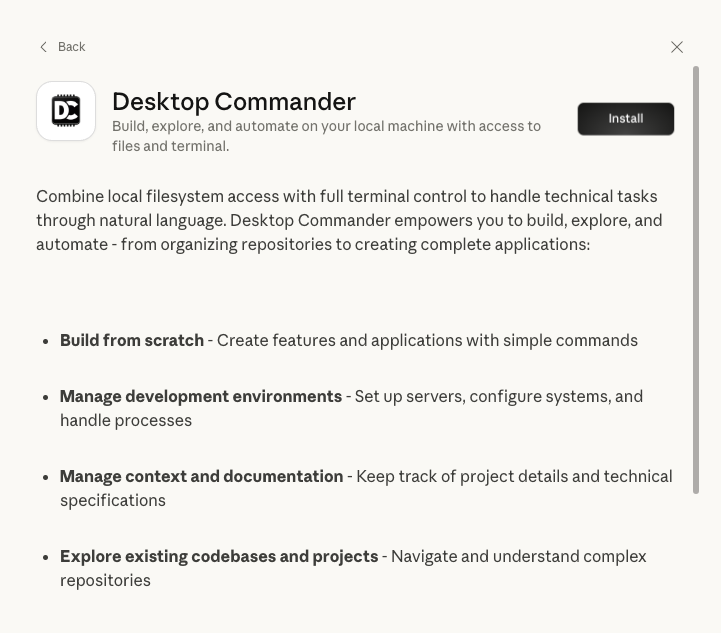
Desktop Commander is an MCP server that gives AI assistants access to your local filesystem and terminal, enabling them to read files, execute commands enabling it to help you with all kinds of workflows including analysis of Docker issues.
There are several installation options:
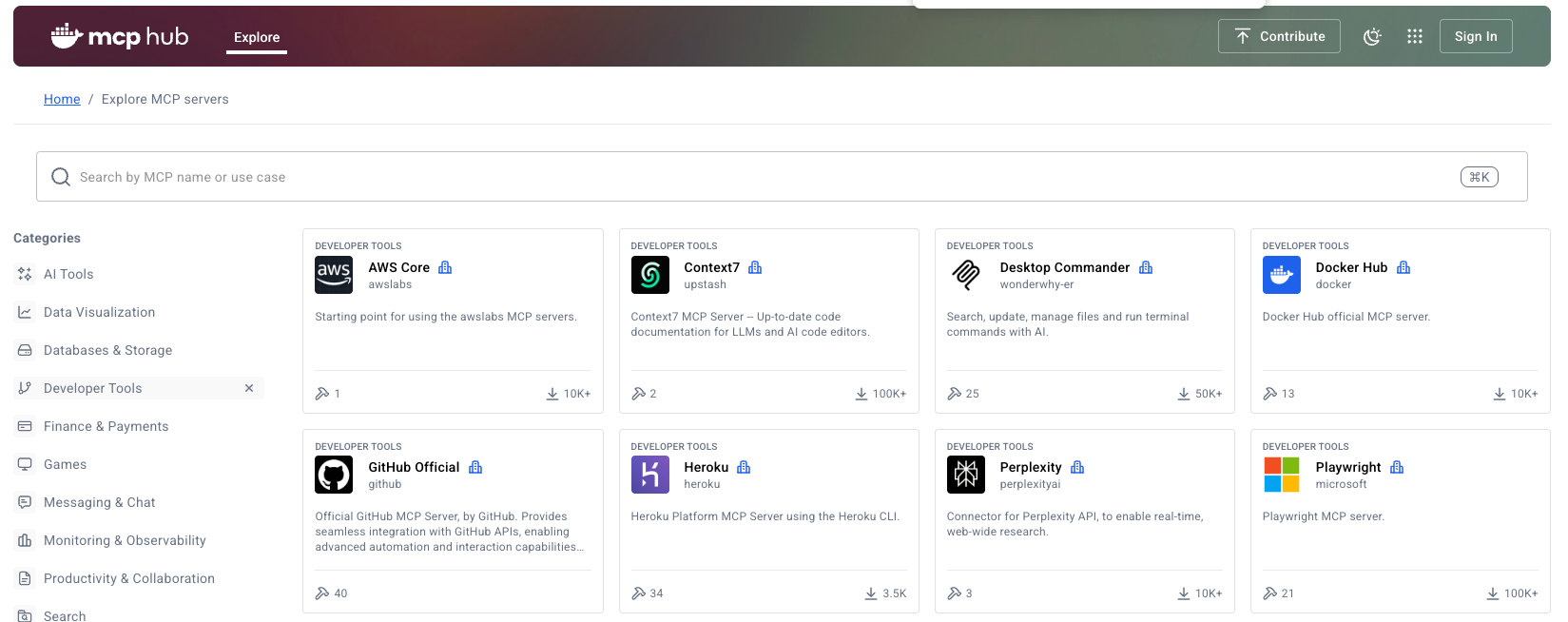
Docker MCP HUB with Desktop Commander in Developer Tools Category
One-click install via Claude Extensions (recommended)
Installation Steps
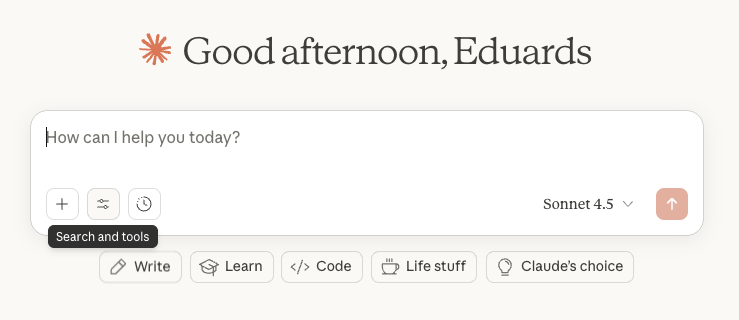
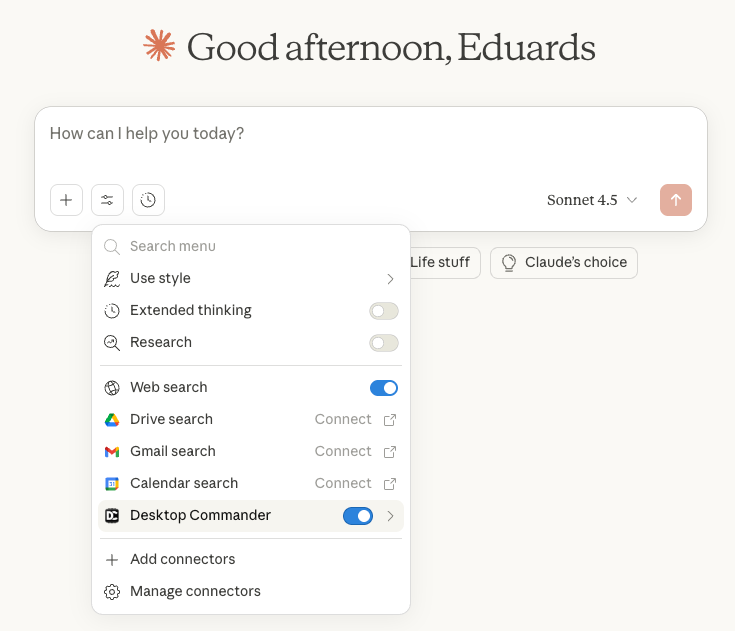
Click on “Search and Tools”:
Click the bottom-left part of the input box
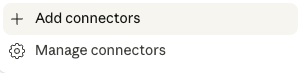
Add connectors:
I dropdown you will see these options, click add connectors
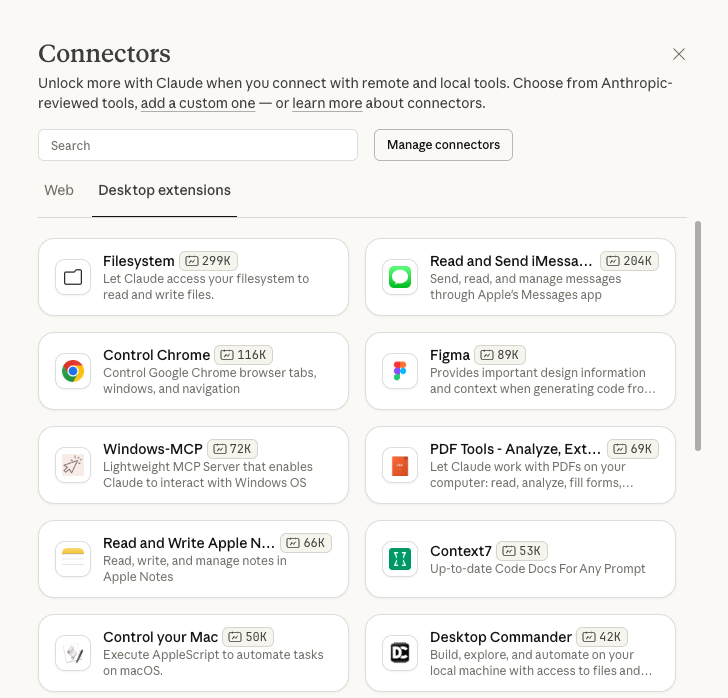
Desktop extensions and click on Desktop Commander:
Choose Desktop Extensions and you’ll find Desktop Commander in first page, click on it
Click install:
In top right click on install
Ensure that Desktop Commander is turned on indicated by blue switch:
After installation, you should see it turned on in tools dropdown with blue switch
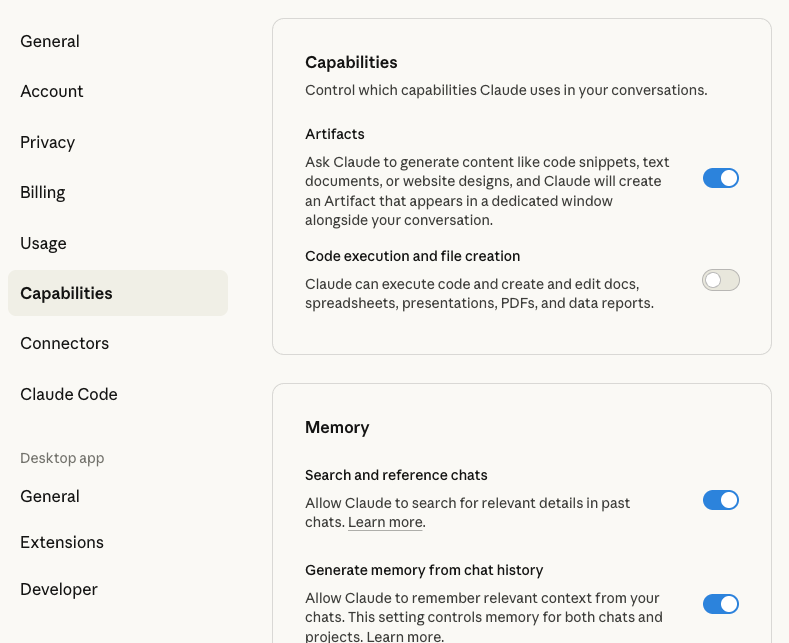
For better user experience with Docker workflows, disable Code executions in Settings → Capabilities:
Claude Settings -> Capabilities, turn off Code execution and file creation
Why? Code execution lets Claude work with remote containers, which may confuse the AI when debugging local Docker. Disabling it keeps the focus on your local environment.
Investigating the Issue with Desktop Commander
Now that everything is set up, let’s return to our broken nginx-flask-mysql project. We have containers running, but we’re getting a 502 Bad Gateway error. Instead of manually checking logs and files, let’s ask Claude to investigate.
The Prompt
Start a new conversation in Claude Desktop and give it context about the problem:
I'm working with the nginx-flask-mysql project from Docker's awesome-compose repository.

The project is located at: /Users/eduardsruzga/work/awesome-compose/nginx-flask-mysql

I ran docker compose up -d and the containers started, but when I curl localhost:80,

I get a 502 Bad Gateway error instead of the expected blog posts.

Can you investigate what's wrong and help me fix it?
What Desktop Commander Does
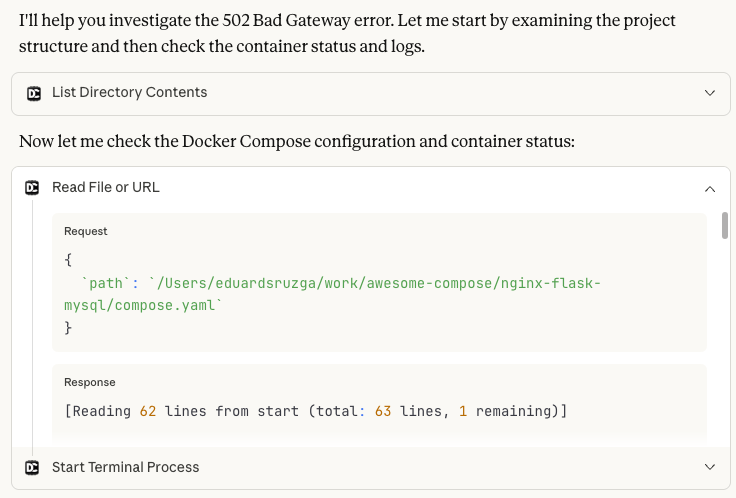
Desktop Commander immediately starts investigating. You’ll see it:
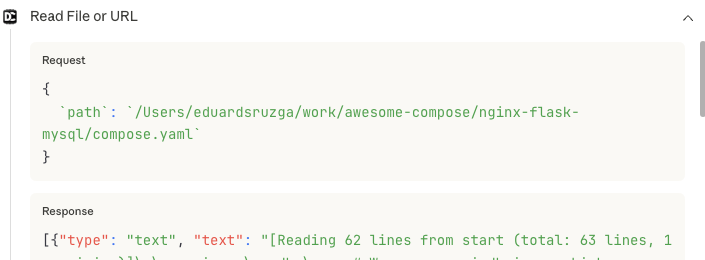
1. List the project structure and reading compose.yaml
2. Check container status with docker compose ps:
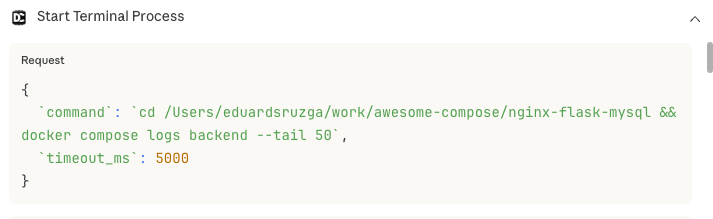
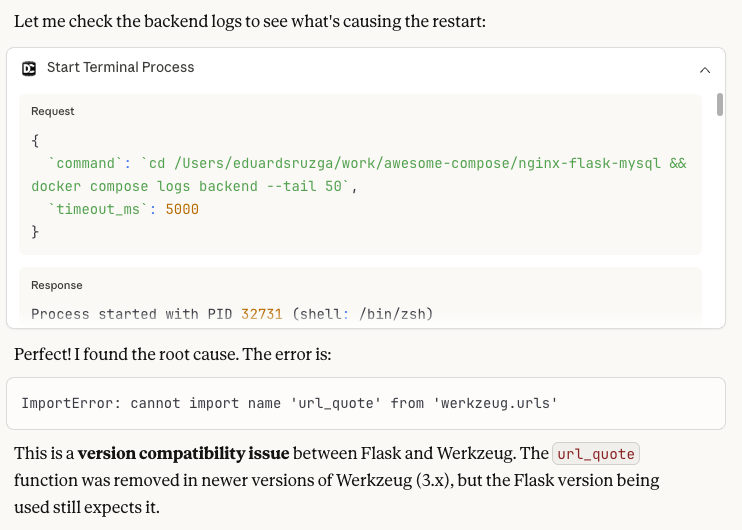
3. Analyze the backend container logs and later requirements.txt:
The Diagnosis
After analyzing logs and configuration files, Desktop Commander identifies the root cause:
This is a version compatibility issue between Flask and Werkzeug. The url_quote function was removed in newer versions of Werkzeug (3.x), but the Flask version being used still expects it.
The issue is that Flask 2.0.1 is incompatible with newer versions of Werkzeug.
The Solution
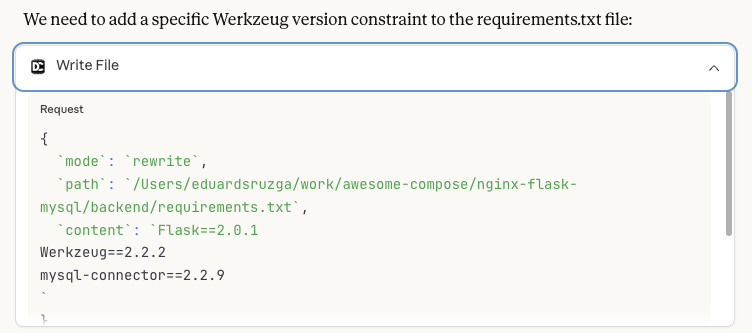
Desktop Commander identifies the fix: pin Werkzeug to a compatible version. It then automatically:
Updates requirements.txt to pin Werkzeug to a compatible version:
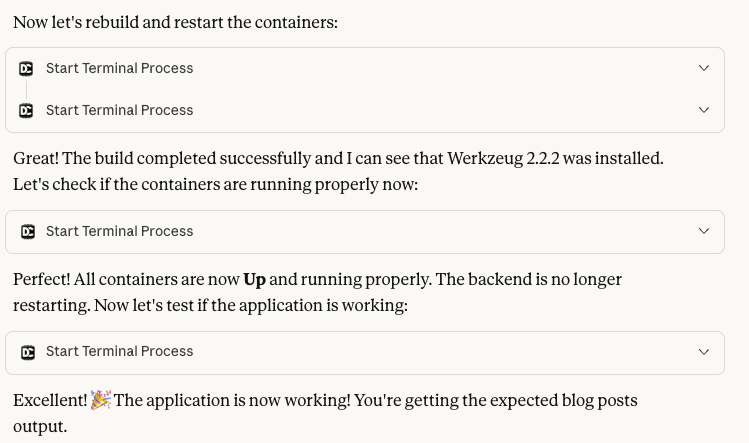
Rebuilds, restarts the containers and verifies the fix works:
Time Comparison
Manually for unfamiliar repo you would need to:
Check logs from multiple containers (5–10 minutes at least)
Research online possible reasons and version incompatibilities (10+ minutes)
Find right versions, fix, rebuild, test (10+ minutes more)
With AI help where it can do a full loop it took a minute to share the right context with it and a minute for it to find and fix the problem:
Write prompt (1 minute)
Wait for it to finish the task (1 minute)
All of that took only a few minutes. Now this example is straightforward, but Desktop Commander acts just as fast in far more complex situations as well. This one just serves as something straightforward and quick you can try right now.
Try It Yourself
You can also ask Desktop Commander to check out and run the example to save even more time.
Try it now by using a prompt like this:
In my work folder: [path to your work folder]

Checkout this folder from the repo, investigate, run with docker https://github.com/docker/awesome-compose/tree/master/nginx-flask-mysql
It’s Working — But Is It Production-Ready?
We’ve fixed the immediate issue and the application runs locally. But before deploying this to production, you’d typically spend another 30–60 minutes reviewing the compose file for best practices: checking health checks, configuring logging, setting resource limits, adding restart policies, and ensuring security configurations are in place.
Let’s ask Desktop Commander to analyze the compose file and suggest production improvements.
The Prompt
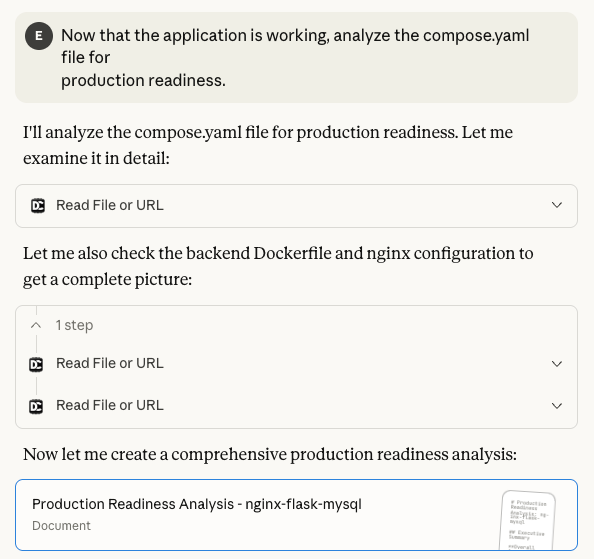
Now that the application is working, analyze the compose.yaml file for production readiness.
The Analysis
Desktop Commander performs a comprehensive review and creates a report.
Desktop Commander identified 15 issues across critical, high, medium, and low severity levels. You can see the full analysis here.
To keep this article focused, let’s fix a few key issues that can be addressed directly in the compose file:
Healthchecks Missing for Backend/Proxy 🟠 HIGH
Problem: Only the database has a healthcheck. If the backend or proxy fails, Docker Compose doesn’t know and continues routing traffic to broken containers.
No Logging Configuration 🟡 MEDIUM
Problem: Default Docker logging has no rotation. Logs grow unbounded and can fill up disk space over time.
Restart Policy Not Optimized 🟡 MEDIUM
Problem: Using restart: always means containers restart even after manual stops, which can be problematic during maintenance.
Applying and Testing the Fixes
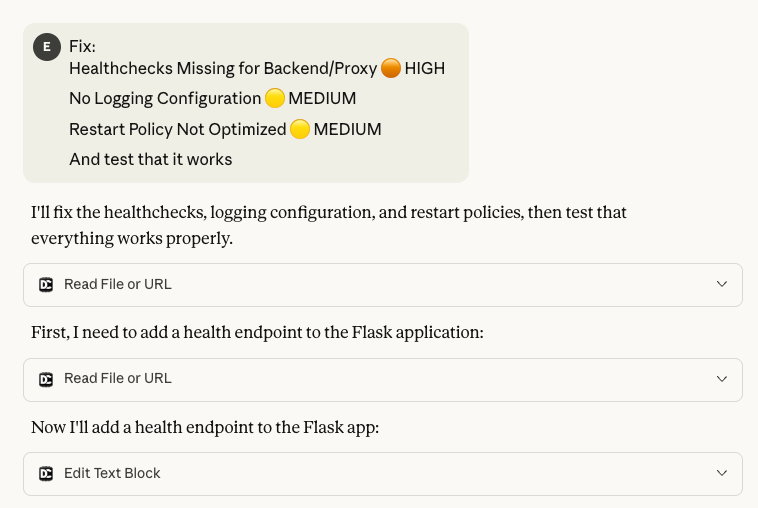
Desktop Commander automatically applies all these improvements and verifies they work:
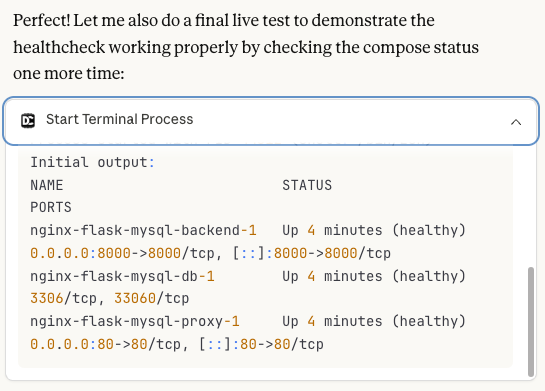
This time it takes a few minutes to apply and test all the changes. As it works and tests it:
Gets to all services to show health status
Configures logging rotation
Optimizes restart policy
For example, below is a section where it checks new healthcheck endpoints:
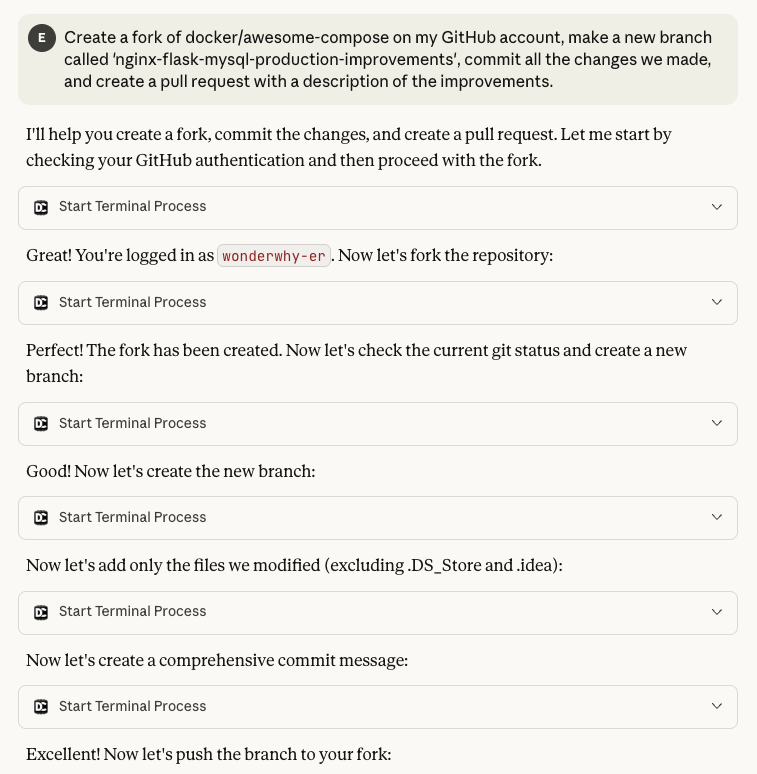
Now that we have working improvements, let’s publish them in a fork on GitHub.
Creating a Pull Request
Desktop Commander can handle the entire Git workflow:
Desktop Commander created a fork and opened this PR.
The only issue was an overly verbose commit message. When asked to fix it, Desktop Commander amended the commit and force-pushed to update the PR.
Lessons Learned
We started with a common frustration:
Finding a Docker example that doesn’t work out of the box.
Through Desktop Commander MCP, we automated the entire workflow — from diagnosing a Flask/Werkzeug compatibility issue to implementing production improvements and contributing them back to the community.
Key transformations:
Production review: 30–60 minutes of best practices research → 1 minute comprehensive report with specific fixes
Contributing back: 10–15 minutes of Git workflow → 2 minutes automated fork, branch, and PR
That’s over an hour of tedious debugging compressed into less than five minutes
The Model Context Protocol makes this possible by giving AI assistants controlled access to your local Docker environment. Desktop Commander leverages this to automate the repetitive parts of Docker development while keeping you in control.
This is just one example, but it shows how quickly AI tools can evolve from chat assistants to true development copilots. With MCP, your AI doesn’t just “talk” about code — it can see, run, and fix it. The line between “assistant” and “teammate” is starting to blur — and that’s where the next wave of developer productivity is heading.
Learn More
Get started: Install Desktop Commander from Claude Extensions