
Think of MCP as the USB-C port for AI. Just as USB-C gives your laptop a universal way to connect to monitors, drives, and peripherals, the Model Context Protocol gives Claude a universal way to connect to your files, databases, terminals, and tools. One standard. Endless possibilities.
If you've ever wished Claude Desktop could just do things on your computer instead of only talking about them, MCP is how you make that happen.
Key Takeaways
- MCP (Model Context Protocol) is Anthropic's open standard for connecting Claude to external systems like your filesystem, terminal, and APIs
- Claude Desktop is the primary way to use MCP—it acts as the host that connects to MCP servers
- MCP servers are lightweight programs that give Claude specific capabilities (file access, terminal commands, database queries)
- Setup takes minutes, not hours—once you understand the config file structure
- Desktop Commander is one of the most popular MCP servers — ranked #2 in Claude Desktop Connectors, top 10 in GitHub’s official MCP registry, and #5 on Docker Hub, with 5,300+ GitHub stars — giving Claude full access to your local machine
What Makes MCP Different from Regular Claude
Without MCP, Claude lives in a sandbox. You paste code, Claude responds with suggestions, you copy those suggestions back into your editor. It's a constant loop of copy-paste-copy-paste.
With MCP, Claude becomes an active participant in your workflow. Ask it to organize your Downloads folder—it actually moves the files. Ask it to set up a new React project—it runs the commands and creates the files. Ask it to find that function buried somewhere in your codebase—it searches and reads the actual files.
The shift isn't just convenience. It's a fundamentally different way of working with AI.
One developer described the transformation: "I kept hitting the same frustration: context switching hell. Claude would write decent code, but it was like working with a brilliant intern who'd never seen your codebase before. Then I discovered MCPs and everything changed."
Understanding the Architecture of MCP
MCP uses a simple client-server model. Here's what each piece does:
- Hosts are applications like Claude Desktop or VS Code that initiate connections. When you open Claude Desktop and it loads your MCP configuration, it's acting as the host.
- MCP Clients maintain the actual connections to servers. Each client talks to one server at a time, keeping communications clean and isolated.
- MCP Servers are lightweight programs that expose specific capabilities. A filesystem server lets Claude read and write files. A terminal server lets Claude run commands. A GitHub server lets Claude interact with repositories. Check out our full article on MCP Servers.
| Component | Role | Examples |
|---|---|---|
| Host | Initiates connections, runs the AI interface | Claude Desktop, Cursor, VS Code |
| Client | Manages 1:1 server connections | Built into the host application |
| Server | Provides specific capabilities | Desktop Commander, GitHub MCP, Postgres MCP |
The beauty of this architecture is modularity. You only enable the servers you need, and each server only has access to what you configure.
Setting Up MCP with Claude Desktop
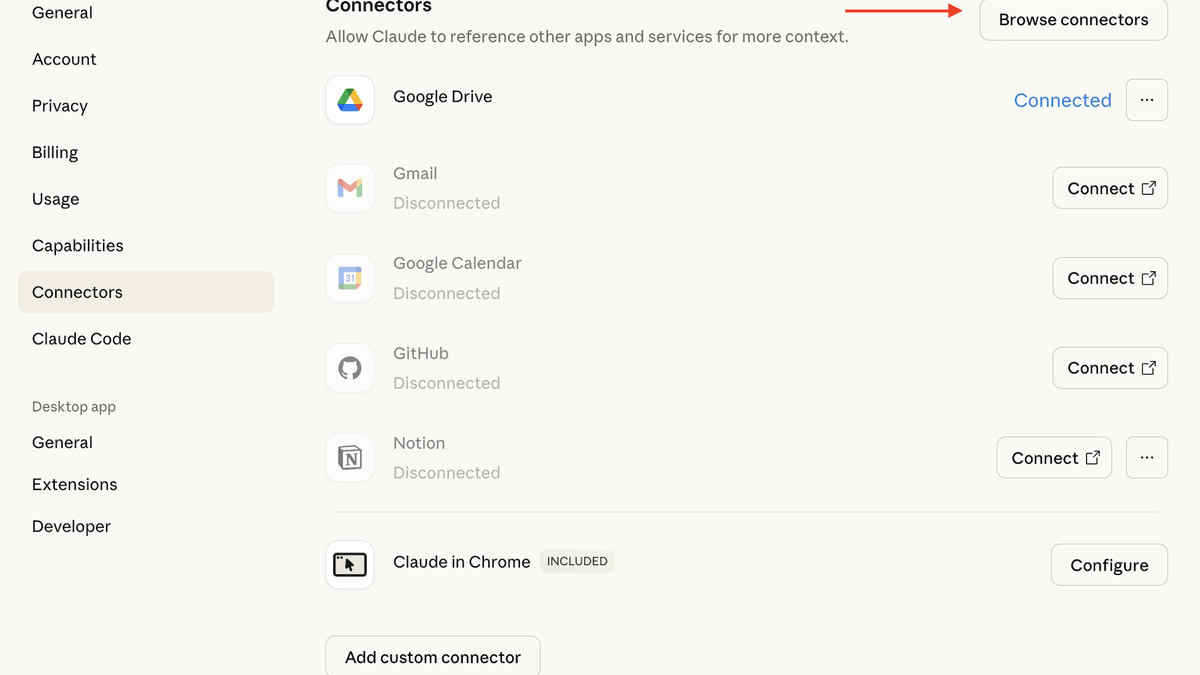
Getting MCP working with Claude Desktop is straightforward once you know where to look. Just go to "Connectors" menu (can be found in the chat pressing "+" then "Connectors" then "Browse Connectors").
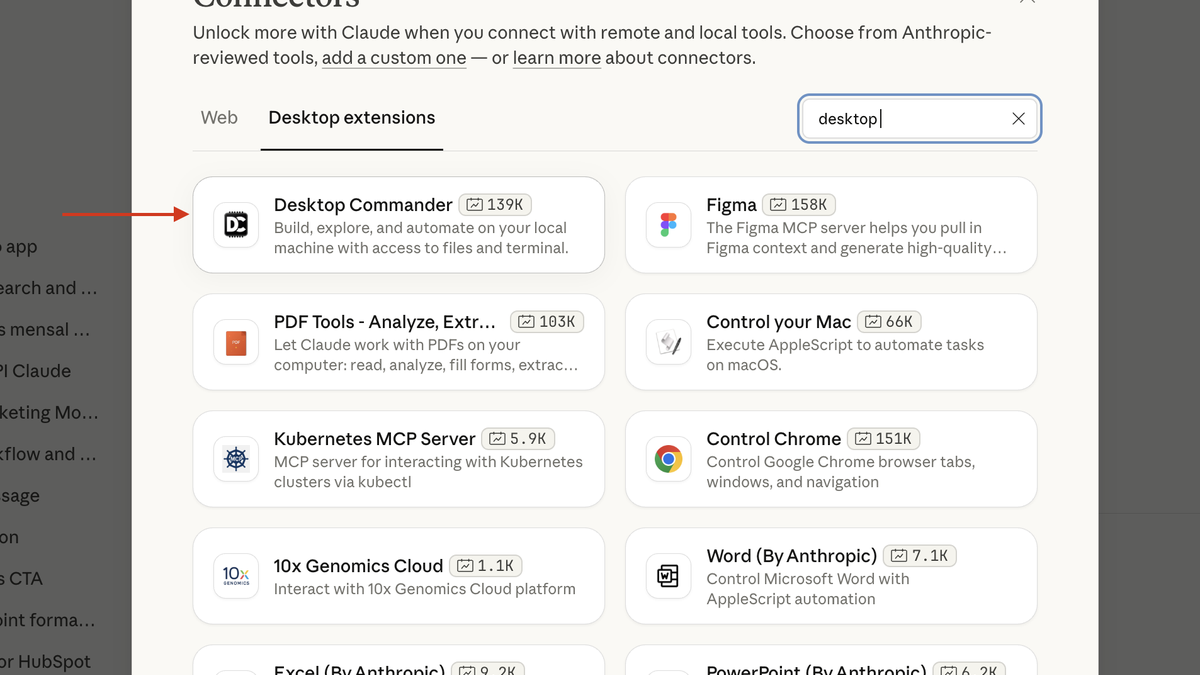
Say you are looking for Desktop Commander: under search, type "Desktop" and you will find Desktop Commander (with more than 139,000 installs!). You can install it there with one click.
Popular MCP Servers Compared
Anthropic provides several pre-built MCP servers for common integrations. Here's how they compare:
| MCP Server | What It Does | Best For |
|---|---|---|
| Filesystem | Read/write files in specified directories | Basic file operations |
| GitHub | Interact with repositories, issues, PRs | Open source contributors |
| Postgres | Query databases directly | Data analysis, backend work |
| Puppeteer | Browser automation and scraping | Testing, web data extraction |
| Desktop Commander | Full filesystem + terminal access | Complete local development |
Desktop Commander stands out because it combines multiple capabilities into one server and in the beginning of 2026 it overtook Figma Official MCP reaching 5th position on Claude Connectors's list.
Instead of configuring separate servers for files and terminal access, Desktop Commander gets everything in one package—plus features like diff-based code editing that make it behave more like a human developer.
But most of the best MCPs are not pre-built. Here is a list with the best 22 MCPs by category.
Install Desktop Commander MCP
Connect Claude to your local files and terminal. One-click install for Claude Desktop.
Desktop Commander: MCP for Your Entire Machine
If you want Claude to have real access to your development environment, Desktop Commander is worth exploring. It's an open-source MCP server (MIT license) with over 26,000 weekly downloads and a growing community.
Installing Desktop Commander takes one terminal command:
npx @anthropic-ai/desktop-commander@latest initThis command automatically configures Claude Desktop to use Desktop Commander. Restart Claude Desktop, and you now have an AI that can:
- Navigate and modify your filesystem
- Run terminal commands
- Edit code with surgical precision
- Manage your development environment
The prompt library includes 70+ ready-to-use prompts organized by workflow—from codebase exploration to deployment automation.
Practical Prompts You Can Try
Once MCP is configured, Claude understands your local context. Here are prompts that demonstrate what becomes possible:
Exploring a new codebase
Read through the main entry points of this project and explain the architecture. Focus on how data flows between components.See full Explain Codebase or Repository on Desktop Commander Prompt Library
Organizing files
Look at my Downloads folder and organize the files by type—documents, images, installers, and archives. Create subfolders if they don't exist.See 10+ prompts about Organizing files on Desktop Commander Prompt Library
Setting up a project
Specific:
Initialize a new Next.js project called 'dashboard' with TypeScript, Tailwind CSS, and ESLint configured.General:
Set up a complete local development environment for the project at [project path] including all dependencies and configurations.Debugging an error
Find where UserAuthService is defined in this codebase and trace how authentication errors are handled.Connect to [server] and investigate the nginx error. Check logs, configuration, and system status to find the cause.These aren't hypothetical suggestions that you then have to implement yourself. With MCP, Claude actually performs these actions on your machine.
Explore more use cases in Desktop Commander Prompt Library
When MCP Can Fail Silently
Here's something the documentation doesn't emphasize enough: MCP can fail without telling you anything useful. You'll type a prompt expecting Claude to use a tool, and it just… doesn't. No error message. No explanation.
Common causes and fixes:
- Path problems: Double-check that every path in your config file is correct and uses the right format for your operating system. A single typo breaks everything.
- Command not found: If you're using npx, make sure Node.js is in your system's PATH. Test by running
npx --versionin a terminal. - Server not loading: Restart Claude Desktop after any config change. The config is only read at startup.
- Debug mode: Launch with
--mcp-debugflag to see what's actually happening behind the scenes. - Context overload: MCP tools consume context window space just by being available. If you have many servers configured, they might be eating into your available context. Use fewer servers or remove unused ones.
One developer reported spending four hours debugging an MCP integration before discovering the issue was server-side. When in doubt, test with a single MCP server to isolate the problem.
Beyond the Basics of Claude and MCPs
Once you're comfortable with MCP fundamentals, you can extend Claude's capabilities further:
- Remote MCP servers: Claude Pro and higher tiers support connecting to remote MCP servers over HTTP, enabling integrations with cloud services like Notion, Slack, and Google Drive.
- Custom servers: The MCP specification is open, so you can build servers tailored to your specific workflows. Eduard's Medium and YouTube channel cover advanced implementations.
- Multiple configurations: Store different MCP setups for different projects using
.mcp.jsonfiles in project directories.
Frequently Asked Questions
Do I need Claude Pro to use MCP? ▾
Is MCP secure? ▾
Can I use MCP with ChatGPT? ▾
Why isn't Claude using my MCP tools? ▾
--mcp-debug to see detailed logs.
What's the difference between MCP and Claude Code? ▾
Model Context Protocol transforms Claude from a conversational AI into something that can genuinely participate in your work. Whether you start with a simple filesystem server or dive straight into Desktop Commander, the setup investment pays off quickly in reduced context-switching and more fluid workflows.
Install Desktop Commander MCP
Connect Claude to your local files and terminal. One-click install for Claude Desktop.