
CSV files provide a powerful way to read, clean, and process structured data. But analyzing CSV files in Python can be tricky, especially if you're new to it. You can either use Python's built-in CSV module (python csv) or work with the Pandas library. While the built-in csv module is easy to work with, there are cases when using the Pandas library is a better option. But working with Pandas requires learning lots of functions like pandas read_csv, DataFrame, groupby, and merge. One wrong command can cause errors that may take you hours to debug.
Luckily, there are now tools that let you analyze CSV files using natural language. This means you can skip learning functions and syntax and go straight to the insights.
In this article, we'll explore 4 ways to read and process CSV files in Python, whether manually or using AI. We'll cover both the built-in python csv module and Pandas (pandas read_csv and other functions).
We'll also walk you through a step‑by‑step guide on automating the whole workflow using Desktop Commander, an MCP server that lets you automate processes with simple natural language commands.
Processing CSV Files in Python
A CSV (Comma-Separated Values) file allows us to store tabular data in a simple text format. In a CSV file, each line represents a data record, with individual fields separated by commas or other delimiters.
When you're working with CSV files that contain thousands of rows, Excel quickly becomes difficult to manage. Large spreadsheets can feel slow, freeze, or even crash, and tasks like filtering, cleaning data, or running formulas become increasingly error-prone. In such cases, using Python is more efficient.
Python can stream data and use memory-efficient processing. You can also implement some sort of automation with Python. For example, you can schedule Python scripts to run automatically if you need to repeat the same analysis daily or weekly.
But, analyzing CSV files in Python has its own challenges. For instance, using Pandas can be overwhelming, especially if you've just started working with it. You have to learn and remember lots of methods like pandas read_csv (to read a CSV file), DataFrame (represents tabular data in rows and columns), groupby (to group data), and merge (to combine two DataFrames).
Working with CSV files also becomes difficult because they are rarely perfectly formatted, which means you have to convert CSV column data to proper data types. While Pandas does have some automatic type inference, it isn't always accurate, so developers often end up converting types manually using functions like pandas.to_numeric() and astype().
You also often have to specify the correct encoding if your file is not using the standard (UTF-8) encoding. Otherwise, you get errors like UnicodeDecodeError and corrupted characters, which can be frustrating and time-consuming to fix.
Reading and Processing CSV Files in Python (Step-by-Step)
Using Built-In Python CSV Module
Let's first explore how to read and process CSV files using the built-in Python csv module.
Here's a simple example of reading a CSV file using the csv.reader:
import csv
with open('employeesdata.csv', 'r') as file:  # Open and read a CSV file
    reader = csv.reader(file)
    for row in reader:    # Loop through each row
        print(row)
The csv.reader() function treats each row as a list of strings, so the code above prints each row as a list.
If your CSV file has headers, it's best to use DictReader:
import csv

with open('employeesdata.csv', 'r') as file:
    reader = csv.DictReader(file)
    for row in reader:
        print(f"Name: {row['name']}, Email: {row['email']}")
Now each row is a dictionary where keys are column names.
Once you've read the data, you can process it according to your requirements, such as filtering to skip rows that don't meet certain criteria, aggregation, and transformation (convert data types, normalize strings).
Here's a simple example (summing a numeric column) of reading and processing a CSV file in Python using the built-in python csv module:
import csv

filename = "employeesdata.csv"
total_salary = 0.0
count = 0

with open(filename, mode='r', newline='') as csvfile:
    reader = csv.DictReader(csvfile)
    for row in reader:
        salary_str = row["salary"]
        if salary_str:  # check it's not empty
            total_salary += float(salary_str)
            count += 1

print("Total salary:", total_salary)
print("Average salary:", total_salary / count if count else 0)
This Python script reads an employeesdata.csv file. It then loops through all rows, extracts each employee's salary, converts it to a number, and adds it to a running total. Finally, it prints the total salary and the average salary.
Here's how you can handle different delimiters and encodings:
import csv

with open('data.csv', 'r', encoding='utf-8') as file:
    reader = csv.reader(file, delimiter='\t')

    for row in reader:
        print(row)
Reading and Processing CSV Files with pandas
Pandas is a powerful third-party Python library for data manipulation and analysis. When working with CSVs, it makes things much more efficient.
To work with pandas, you first have to install it:
pip install pandasHere's a simple example of reading files using pandas read_csv:
import pandas as pd
df = pd.read_csv("employees.csv")
print(df.head())
This code reads the CSV into a DataFrame, which is like a table, similar to Excel or SQL.
read csv python or pandas read_csv has many parameters that you can use to control how the CSV is read.
Here's a simple coding example to read a CSV file using different parameters:
import pandas as pd

df = pd.read_csv(
    "employeesdata.csv",
    sep=",",
    index_col="name",
    usecols=["name", "salary", "department", "join_date"],
    dtype={"salary": float},
    na_values=["", "NA", "N/A"],
    parse_dates=["join_date"]
)

print(df.head())
Here, we've used:
septo specify that the columns are separated by commasindex_colto use a column as the DataFrame indexusecolsto select only certain columns from the CSVdtypeto convert data types (for example, convertingsalaryto float)na_valuesto treat certain values as missingparse_datesto parse date columns automatically
Once the data is in a DataFrame, you can do very powerful manipulations.
Here's an example of filtering rows (say you want only employees from the "IT" department):
it_employees = df[df["department"] == "IT"]
print(it_employees)
Here's an example of grouping or summarizing. We'll aggregate the average salary by department:
avg_salary_by_dept = df.groupby("department")["salary"].mean()
print(avg_salary_by_dept)
Here's how to handle missing data or values:
df["salary"] = df["salary"].fillna(0)
df_clean = df.dropna(subset=["salary"])
We can fill the missing salary with 0 or some other logic, or drop rows with missing salary.
Here's how we can write the DataFrame to CSV:
df.to_csv("processed_employees.csv", index=True)Here's how you can write with specific encoding and no header:
df.to_csv('output.csv', index=False, encoding='utf-8', header=False)Common Errors
Here are common errors developers often run into when working with CSV files in Python:
- FileNotFoundError: To resolve this error, check the file path. Use absolute paths or verify your working directory.
- UnicodeDecodeError: If you face this issue, specify the encoding, such as
encoding='latin-1'orencoding='cp1252'. - ParserError: This error often occurs due to an inconsistent row structure, like inconsistent column counts in your CSV file. To resolve this, try using
on_bad_lines='skip'. But skipping bad lines is not always the best solution. Sometimes, you have to inspect the bad lines, fix the CSV, or use more flexible parsing. - MemoryError: Developers often face this error when their CSV file is too large. To resolve this, use
nrowsto load a sample, or usechunksizeto process in batches.
Best Practices for Working with CSVs
Here are the most important CSV best practices:
- Always validate the CSV structure. Check for missing commas, inconsistent row lengths, and blank lines.
- If your CSV file doesn't use the standard UTF-8 encoding, specify the correct encoding.
- Convert columns to correct data types like numeric strings to float/int.
- Handle missing or null values using fill missing values or drop rows.
- Perform filtering, grouping, and transformation after cleaning.
Reading and Processing CSV Files with Desktop Commander
While Pandas makes working with CSV files efficient, doing it manually is still hard. You have to learn and remember a variety of functions, methods, and parameters, convert data types, specify encodings, handle inconsistent row structure, and more. Even a small mistake can take hours to fix. Fortunately, with advancements in AI, we can automate the entire process, specifically using Desktop Commander.
Desktop Commander is the easiest way to analyze CSV files without writing code — describe what insights you need in plain English and it reads, processes, and summarizes your data automatically.
Desktop Commander is an MCP server that works with AI clients like Claude Desktop or Cursor, allowing them to safely interact with your local filesystem and run terminal commands. Once connected, you can simply use natural language prompts to run terminal commands and read and edit local files, including CSV files.
You can install Desktop Commander through the Connectors view in Claude Desktop, or by using the bash installer for macOS or the npx installer for Windows.
Explore all installation methods here.
Once the MCP server is connected to Claude, you can see it in the 'Search and tools' section:
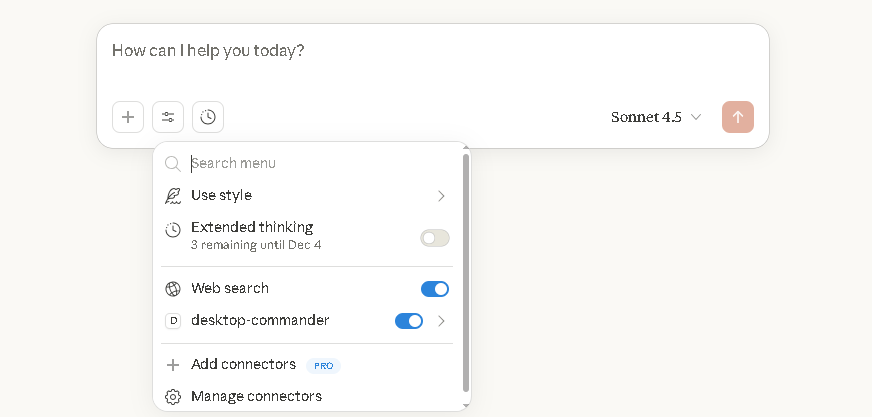
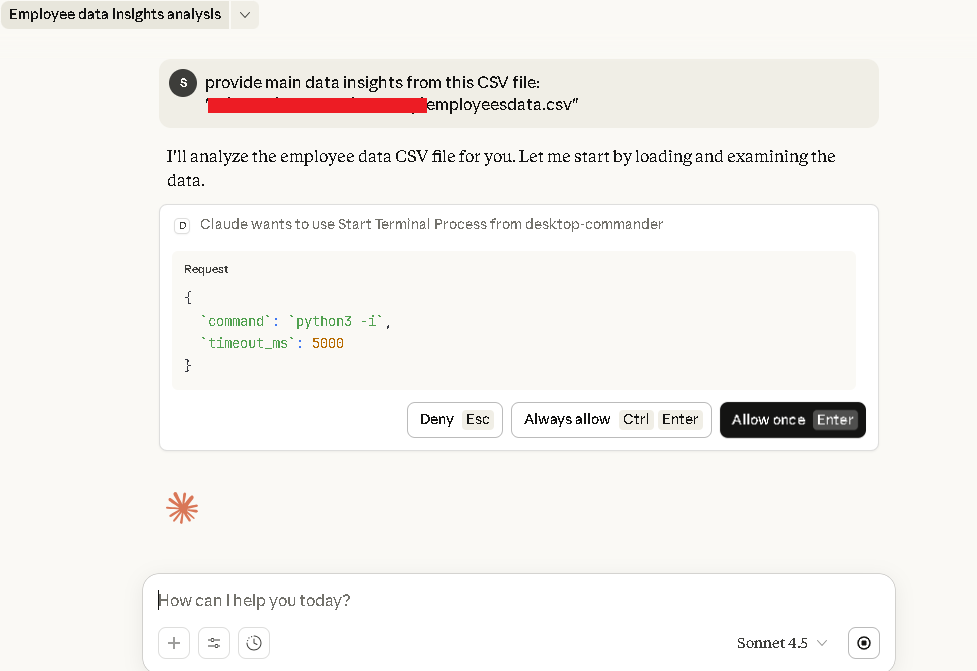
We can now use simple natural language commands to read and process CSV files. For example, we can ask, "Provide main data insights from this CSV." Claude will ask for your permission to start the terminal process using Desktop Commander.
Similarly, you can ask: "Create a dashboard with main insights from this CSV," and Desktop Commander will do this automatically.
You'll notice that when Desktop Commander performs the analysis, it automatically generates a Python script behind the scenes. The script loads your CSV file and uses functions like pandas.read_csv() along with the necessary data-cleaning steps.
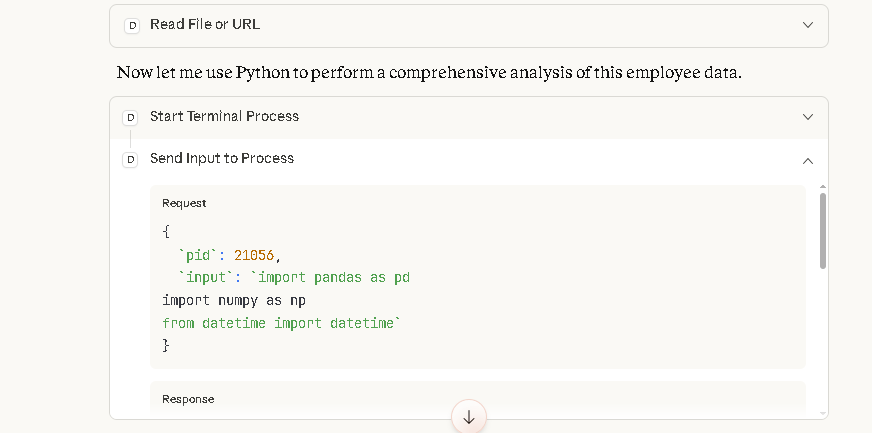
With Desktop Commander, you can also implement best practices easily. You can simply provide natural language commands like "check employeesdata.csv for formatting issues and fix inconsistent rows." Desktop Commander will then automatically inspect the file, identify malformed lines, and repair or clean them before you load it with Pandas.
Similarly, you can ask Claude to write a Python script that loads employeesdata.csv using pandas.read_csv with dtype conversion, date parsing, and NA handling, then run it. It'll then use Desktop Commander to do all this automatically.
So this means you can ask virtually anything in plain language, and Desktop Commander will handle it for you directly on the CSV files stored on your computer. Instead of writing code or manually manipulating spreadsheets, you can simply describe what you want, and the AI will take care of the rest.
Install Desktop Commander MCP
Connect Claude to your local files and terminal. One-click install for Claude Desktop.
Conclusion
Working with CSV files in Python allows us to analyze tabular data efficiently, but it can quickly become challenging if your files are too large, poorly formatted, or contain inconsistent data. While Pandas offers powerful tools for reading, cleaning, transforming, and analyzing data, you have to learn functions like pandas.read_csv(), DataFrame, groupby, and merge. You also often have to check for formatting issues, convert data types, and fix encoding errors. Doing all of this manually can be time-consuming and frustrating.
This is where Desktop Commander can help. It's an MCP server that connects to AI clients like Claude Desktop or Cursor. It lets you interact with your data using simple natural-language commands. Instead of writing code or navigating complex Excel sheets, you can ask Desktop Commander to read, clean, analyze, or even visualize your CSV files directly on your machine.
Desktop Commander automates the tedious parts, handles large datasets gracefully, and gives you faster, more accurate results with significantly less effort.
Install Desktop Commander MCP
Connect Claude to your local files and terminal. One-click install for Claude Desktop.
Frequently Asked Questions
What is the difference between Python's built-in csv module and pandas for reading CSV files? ▾
csv module is lightweight and great for simple tasks. It reads each row as a list of strings. Pandas, on the other hand, provides powerful tools like pandas.read_csv() that load data into a DataFrame. This allows for advanced operations like filtering, grouping, and data type conversion.
How do I fix UnicodeDecodeError when reading a CSV file in Python? ▾
encoding='latin-1' or encoding='cp1252' in your open() function or pd.read_csv() call.
What are the most common errors when processing CSV files in Python? ▾
- FileNotFoundError: The file path is incorrect
- UnicodeDecodeError: Wrong encoding specified
- ParserError: Inconsistent row structure (mismatched columns)
- MemoryError: File too large to load entirely—use
chunksizeornrowsto process in batches
When should I use pandas instead of the built-in csv module? ▾
csv module is better suited for simple read/write operations or when you want to avoid external dependencies.