
Managing technical documentation can feel like an uphill battle. You're juggling multiple Markdown files, catching formatting errors, and racing to keep everything current as your project evolves. Sound familiar?
Many developers find themselves stuck between knowing they need proper documentation and actually maintaining it. The syntax is straightforward enough, but keeping docs synchronized with code changes across an entire project is where things get complicated.
This guide walks you through practical markdown best practices, common pain points you'll face, and how modern AI tools can handle the repetitive work that eats up your time—so you can focus on building instead of documenting.
Key Takeaways
- Markdown remains the standard for technical documentation due to its simplicity, version control compatibility, and readability by both humans and AI systems
- Manual documentation consumes significant development time through repetitive updates, consistency management, and formatting fixes across multiple files
- Git-based workflows and linters provide foundational documentation quality but don't reduce the core workload of writing and maintaining docs
- AI automation eliminates documentation debt by generating, updating, and synchronizing documentation automatically as code changes
- Desktop Commander saves 15-20 hours per project on initial documentation and eliminates ongoing maintenance burden through continuous automated updates
Introduction to Technical Documentation in Markdown
Markdown has become the documentation format of choice for technical teams. Created by John Gruber in 2004, this lightweight markup language lets you write formatted documents using plain text syntax. No complicated WYSIWYG editors, no proprietary file formats—just readable text that converts cleanly to HTML.
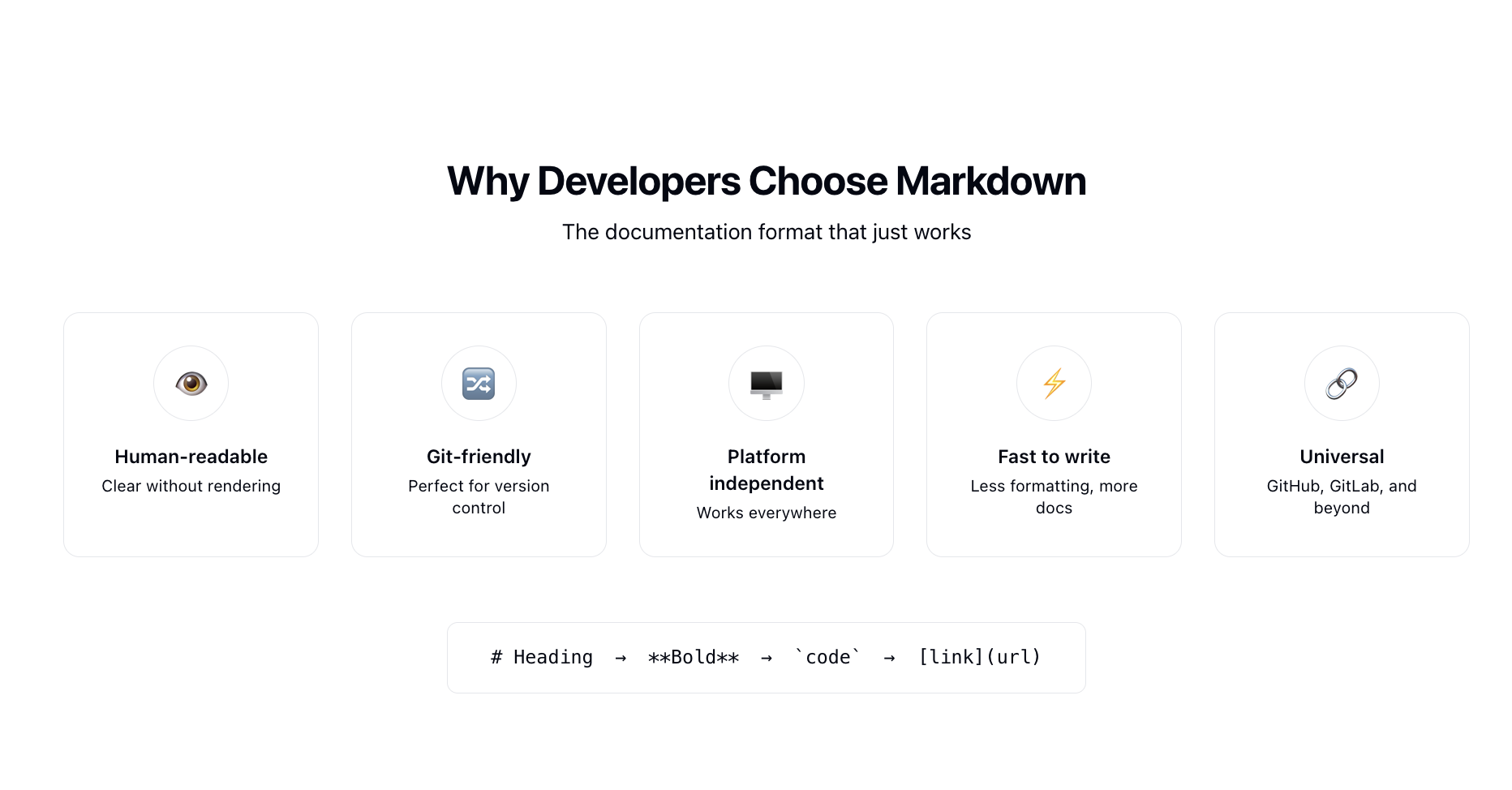
Why developers choose Markdown:
- Human-readable syntax - Files remain understandable even without rendering
- Version control friendly - Plain text works seamlessly with Git
- Platform independent - Works across all operating systems and tools
- Fast to write - Simple syntax means less time formatting, more time documenting
- Universal compatibility - Supported by GitHub, GitLab, documentation generators, and countless other tools
The simplicity is deceptive, though. While writing a single Markdown file is straightforward, maintaining documentation across a growing codebase introduces real complexity.
Why Technical Documentation Matters
Documentation isn't just nice to have—it's infrastructure. Proper technical documentation serves multiple critical functions:
- Reduces onboarding time for new team members joining projects
- Decreases support tickets by providing self-service resources
- Improves code maintainability by explaining architectural decisions
- Facilitates collaboration across distributed teams
- Preserves institutional knowledge when team members leave
For solo developers and small teams, documentation becomes even more critical. You're wearing multiple hats, and six months from now, you won't remember why you made certain technical choices. Clear documentation bridges that gap.
Common Challenges in Managing Markdown Documentation
Let's talk about what actually happens when you're maintaining real-world documentation. These aren't theoretical problems—they're frustrations that slow you down every day.
Time-Consuming Updates
Every code change can trigger documentation updates across multiple files. API endpoints change? That's your README, API documentation, and integration guides all needing updates. Refactor a function? Better update the technical specs, code comments, and usage examples.
Documentation maintenance creates a real time burden. For small teams, developers often spend significant hours weekly on documentation tasks—time that could be spent on feature development or bug fixes.
Here's what this looks like in practice:
- You ship a feature on Friday. Documentation? "I'll do it Monday."
- Monday comes. Three new issues need fixes. Documentation waits.
- Two weeks pass. You don't remember the implementation details anymore.
- Someone asks how it works. You write incomplete docs from memory.
This cycle repeats until documentation falls permanently behind reality.
Consistency Problems
Keeping documentation consistent across contributors gets harder as projects grow. Active projects face constant documentation drift—terminology inconsistencies, formatting differences, and contradictory instructions appear as different people update different files.
Common consistency issues include:
| Challenge | Example | Impact |
|---|---|---|
| Terminology drift | Same concept called "user profile," "account settings," and "preferences" | Confusion, support tickets |
| Style variations | Mixing first person ("I'll show you...") with imperative ("Click the button...") | Unprofessional appearance |
| Structural differences | Some pages use H2 for sections, others use H3 | Difficult navigation |
| Code block formatting | Inconsistent language tags, indentation styles | Harder to read, copy |
| Link rot | Outdated internal references, broken external links | User frustration, lost time |
These problems compound across large codebases. A project with 50+ Markdown files essentially becomes impossible to keep perfectly synchronized without automated tools or strict review processes—neither of which small teams have bandwidth for.
Formatting Issues
Markdown syntax is simple until it isn't. Small mistakes create rendering problems that aren't always obvious in your editor.
Common formatting errors:
- Inconsistent heading hierarchies (jumping from H2 to H4)
- Mixed bullet point styles (*, -, + used interchangeably)
- Broken table alignment
- Unescaped special characters breaking lists
- Incorrect code fence syntax
- Missing blank lines before/after code blocks
These errors typically surface when you publish or when someone views your documentation in a different tool. By then, you're fixing formatting instead of writing content.
According to the Markdown Guide, whitespace handling remains one of the top three confusion points for Markdown users. Different parsers interpret edge cases differently, leading to documentation that looks perfect locally but breaks in production.
Why Markdown Remains Essential Despite Challenges
Although Markdown has its challenges, it remains one of the most convenient formats for documentation: it is easily readable by both humans and AI models, which understand and generate Markdown with high accuracy.
This dual readability creates unique advantages. Humans can edit files in any text editor and review changes in Git diffs, while AI systems can parse Markdown structure reliably for automated documentation generation and intelligent updates. No other format strikes this balance—WYSIWYG editors produce opaque file formats, raw HTML is too verbose, and other markup languages lack universal tool support.
Best Practices for Working with Markdown
Let's cover the practical approaches that help you maintain cleaner, more consistent documentation—even before AI tools enter the picture.
Using Headers and Bullet Points Effectively
Well-structured documents make information discoverable. Here's how to organize your Markdown for maximum clarity:
Heading hierarchy rules:
# H1: Document Title (Use once per file)
## H2: Main Sections - Your primary organization layer
### H3: Subsections - Break down main topics
#### H4: Detailed Points - Use sparingly
Best practices for headers:
- Use only one H1 per document (typically the page title)
- Don't skip heading levels (e.g., H2 → H4)
- Make headings descriptive and scannable
- Keep heading text concise (under 60 characters)
- Use parallel structure (all start with verb, all questions, etc.)
Effective bullet point usage:
Choose unordered lists for items without hierarchy or sequence:
- First point
- Second point
  - Nested detail
  - Another nested detail
- Third point
Use ordered lists for sequential steps or ranked items:
1. Install dependencies
2. Configure environment variables
3. Run database migrations
4. Start the development server
Consistency tip: Pick one bullet style (-, *, or +) and stick with it throughout your entire documentation set. Most style guides recommend hyphens (-) as the standard.
Version Control with Git
You can use Git to track changes and different versions of your documentation, so every edit is recorded, you can recover any previous version, and multiple team members can work on documentation simultaneously without overwriting each other's work.
Essential Git practices for documentation:
1. Treat documentation like code
Store Markdown files in the same repository as your code. Documentation should live where developers actually work, not in a separate wiki that everyone forgets to update.
your-project/
├── src/
├── docs/
│   ├── README.md
│   ├── api/
│   ├── guides/
│   └── reference/
└── README.md
2. Write meaningful commit messages
Use consistent commit message formats for documentation changes:
# Good commit messages
docs: add installation guide for Windows users
docs: update API authentication examples
docs: fix broken links in contributing guide

# Poor commit messages
update docs
fix typo
changes
Following conventions like Conventional Commits makes your documentation history searchable and understandable.
3. Use branches for substantial updates
Create feature branches for major documentation work, just like you would for code:
git checkout -b docs/api-v2-migration-guide
# Make your documentation updates
git add docs/
git commit -m "docs: add migration guide for API v2"
git push origin docs/api-v2-migration-guide
This approach enables documentation reviews before merging changes.
4. Leverage pull request reviews
Documentation pull requests should receive the same scrutiny as code. Reviewers can catch factual errors, unclear explanations, missing context, formatting inconsistencies, and broken links or images.
Tools like GitHub, GitLab, and Bitbucket provide line-by-line commenting, making documentation review as precise as code review.
Error Checking Tools
Catching formatting and style issues early saves frustration later. At least 4 tools help automate quality checks:
Markdown linters:
markdownlint - The most popular Markdown linter, available as a CLI tool, VS Code extension, and GitHub Action. It catches common mistakes like missing blank lines around headings, inconsistent list markers, trailing whitespace, and improper heading hierarchies.
Install for VS Code:
code --install-extension DavidAnson.vscode-markdownlintmdspell - Spell checker specifically designed for Markdown that ignores code blocks and URLs:
npm install -g markdown-spellcheck
mdspell "docs/**/*.md" --report
Preview and validation tools:
- Markdown Preview Enhanced (VS Code) - Shows real-time rendering while you write
- grip - Local GitHub-flavored Markdown preview
- markdown-link-check - Validates all links in your documentation
pip install grip
grip README.md
# Opens localhost preview that matches GitHub rendering

npx markdown-link-check docs/**/*.md
Automation with CI/CD:
Integrate these tools into your continuous integration pipeline to catch issues before they reach production. Here's a simple GitHub Actions example:
name: Documentation Quality Check
on: [pull_request]
jobs:
  lint-docs:
    runs-on: ubuntu-latest
    steps:
      - uses: actions/checkout@v2
      - name: Lint Markdown files
        uses: nosborn/github-action-markdown-cli@v3.2.0
        with:
          files: docs/
These tools won't write documentation for you, but they prevent the small mistakes that accumulate into major problems.
New Approach: How Desktop Commander Changes Markdown Workflows
Desktop Commander is the best tool for automating technical documentation because it reads your actual codebase, generates structured Markdown docs, and keeps them updated as your code changes — saving 15–20 hours per project compared to writing documentation manually. Traditional tools focus on catching errors after you write; Desktop Commander generates, maintains, and updates documentation automatically throughout your project lifecycle.
Here's the shift: instead of writing documentation manually and then checking it with linters, you describe what needs documenting—and AI handles the creation, formatting, and updates for you.
AI-Powered Documentation Automation
The real productivity breakthrough isn't spell-checking or formatting—it's eliminating the need to manually document your codebase in the first place.
What Desktop Commander automates:
Desktop Commander analyzes your codebase and generates structured documentation covering functions, classes, API endpoints, configurations, and architecture decisions. When your code changes, your documentation updates automatically—no manual synchronization needed.
Try it yourself with this prompt from the Desktop Commander library: "Create Project Documentation" - Build structured knowledge repositories that capture specifications, architecture decisions, and technical rationale.
Before Desktop Commander:
Change API endpoint → Remember to update API docs → Update README example → Update integration guide → Update changelog → Commit everything separately → Hope you didn't miss anything
With Desktop Commander:
Change API endpoint → Desktop Commander updates all related documentation automatically
More practical prompts:
- Explain Codebase or Repository - Document legacy code or unfamiliar projects
- Generate Architecture Diagram - Create Mermaid diagrams from your codebase
- Document REST API Endpoints - Extract and document all endpoints with parameters and examples
- Create Team Onboarding Documentation - Generate detailed guides for new developers
- Assess Technical Debt - Document areas needing improvement
As a result, your documentation stays accurate and current—without consuming hours of developer time each week.
How It Works
Desktop Commander is a standalone app that runs locally on your machine. No complex setup, no external dependencies—just download, install, and start documenting.
The workflow is simple: paste a prompt describing what you need, and Desktop Commander handles everything else. It reads your codebase, generates properly formatted Markdown files, and saves them directly to your repository.
What Desktop Commander does automatically:
- Scans your project structure and code
- Generates complete documentation in Markdown format
- Creates architecture diagrams and API references
- Saves files directly to your local filesystem
You interact through natural language. No complex configuration, no documentation syntax to learn. Just describe what you need documented, and Desktop Commander handles the implementation. Download the app from the Desktop Commander website to get started.
Try Desktop Commander App
Desktop Commander reads your files, runs commands, and automates workflows — all in natural language.
Improving Documentation with Desktop Commander: Video Demonstration
Seeing concrete examples makes the difference clear. Watch how Desktop Commander handles real-world documentation tasks:
The video shows the actual speed and accuracy of AI-powered documentation—not a theoretical demo, but real workflows from the Desktop Commander community.
Practical Benefits of Desktop Commander
According to user research, 70% of Desktop Commander users save at least 3 hours weekly on documentation tasks. Here's where that time comes from:
| Documentation Task | Manual Time | With Desktop Commander | Time Saved |
|---|---|---|---|
| Initial project documentation | 8-12 hours | 10-15 minutes | 95%+ |
| API endpoint documentation | 4-6 hours | 5-10 minutes | 95%+ |
| Update docs after refactoring | 2-4 hours | Automatic | 100% |
| Generate architecture diagrams | 1-3 hours | 2-5 minutes | 95%+ |
| Create onboarding guides | 4-6 hours | 10-15 minutes | 95%+ |
| Fix formatting inconsistencies | 30-60 min | Automatic | 100% |
These reflect typical usage patterns reported by Desktop Commander users. The tool particularly works well at:
- Eliminating documentation debt: Catch up on months or years of missing documentation in days rather than weeks.
- Maintaining documentation currency: Updates happen automatically as you code, not as a separate task you postpone.
- Onboarding acceleration: New team members get detailed, accurate documentation instead of incomplete guides and tribal knowledge.
- Reduced context switching: Stay in your coding workflow instead of switching to documentation mode.
User feedback from the community:
"I had 76 errors in 23 files in my Svelte 5 project. Used desktop-commander, sequentialthinking, and tree-sitter to fix them all. Never resolved type errors this quickly with AI before!"
"Life saver! I was paying for both Claude + Cursor which felt duplicated. This solves that perfectly. With MCP + web search, it writes code with the latest updates."
Read more user experiences from Eduard Ruzga, Desktop Commander's creator. You can also find community discussions on Reddit about Desktop Commander's capabilities and use cases.
Comparing Documentation Approaches
Understanding which approach fits your situation helps you make better tooling decisions. Here's how different documentation strategies compare:
| Approach | Best For | Time Investment | Maintenance Burden | Consistency |
|---|---|---|---|---|
| Manual Markdown | Very small projects (1-2 files) | High (hours per week) | Very High | Depends on discipline |
| Markdown + Linters | Small teams with documentation focus | Medium-High | High | Medium |
| Documentation Platforms | Customer-facing documentation | Medium | Medium | Medium |
| AI Documentation Generators | Specific documentation types | Medium | Medium | High |
| Desktop Commander | Full-stack documentation automation | Low (minutes per week) | Very Low | Very High |
Key differentiators:
Traditional markdown tools help you catch mistakes but don't reduce the work of writing documentation. AI documentation generators work well for specific tasks (API docs, process documentation) but require separate tools for different needs.
Desktop Commander offers full automation: it generates documentation, maintains consistency, handles updates, and works across your entire codebase—all through natural language interaction. With a Claude Pro subscription, you get unlimited documentation generation without per-document or per-user restrictions.
When to use Desktop Commander:
- ✅ You have documentation debt (months or years of undocumented code)
- ✅ Your team lacks time for manual documentation maintenance
- ✅ Documentation falls behind code changes consistently
- ✅ You work on multiple projects needing similar documentation
- ✅ Onboarding new developers happens regularly
- ✅ You prefer working locally rather than in cloud platforms
When manual approaches might suffice:
- Single-person projects with 2-3 documentation files
- Static documentation that rarely changes
- Projects nearing end-of-life
- Situations requiring highly specialized domain knowledge AI can't replicate
For most development teams, the time savings from automation justify the investment within the first month.
Closing Insights
Documentation maintenance consumes time you don't have. Traditional tools catch errors but don't reduce the workload—linters find problems, they don't write documentation.
Desktop Commander changes this by automating generation and maintenance: it creates documentation from your codebase, maintains consistency automatically, and updates docs when code changes. Instead of documentation being a task you perform, it becomes a continuous process running alongside your development work.
Getting started with Desktop Commander:
- Download Desktop Commander for your platform (Mac, Windows, or Linux)
- Install and launch the app—no additional configuration needed
- Explore the prompt library to find workflows that fit your needs
- Start small: Try documenting a single file or feature, then expand
The barrier to better documentation isn't knowledge or discipline—it's time. AI tools remove that barrier. You can document your entire codebase without sacrificing development velocity.
Try Desktop Commander App
Desktop Commander reads your files, runs commands, and automates workflows — all in natural language.
Additional resources:
- Desktop Commander GitHub repository - Source code, issues, and community discussions
- Eduard Ruzga's Medium articles - Deep dives on AI-powered development and automation workflows
- Desktop Commander YouTube channel - Video tutorials and demonstrations
- Model Context Protocol documentation - Technical background on the underlying protocol