
How to connect Remote Desktop Commander to Gemini (custom connector)
Add Remote Desktop Commander to the Gemini web app as a custom connector. Then Gemini can read files, search and run commands on your own computer. Takes about 5 minutes; 10 if this is your first computer.
Before you start
- A Google account signed in to gemini.google.com
- A computer to connect: macOS, Windows or Linux
- Server URL:
https://mcp.desktopcommander.app/mcp
Work and school accounts: what you see depends on your organization's Google Workspace settings. The admin can hide or block custom connectors. If you don't see + Custom, or connecting fails with a policy message, ask your Workspace admin or use a personal Google account.
Step 1. Open Connectors
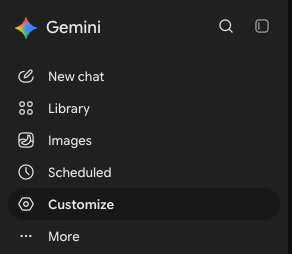
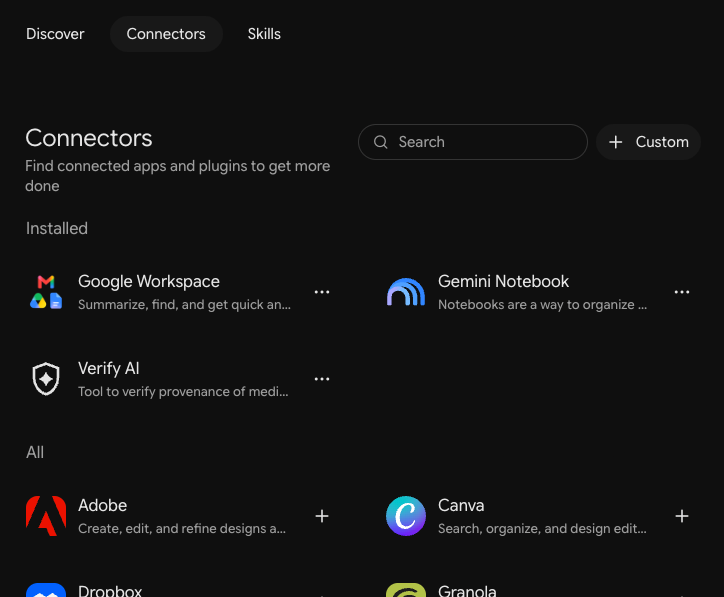
In the Gemini sidebar, click Customize, open the Connectors tab and click + Custom.
Step 2. Enter the server URL
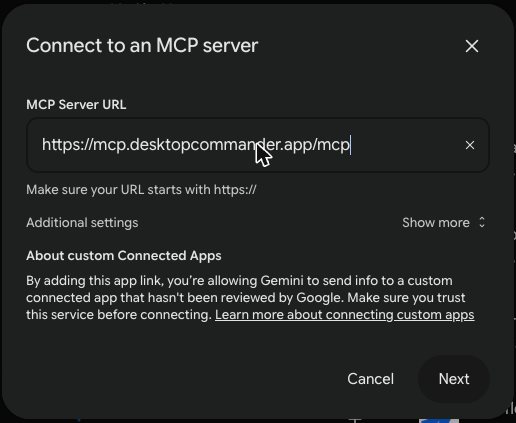
Paste https://mcp.desktopcommander.app/mcp into MCP Server URL and click Next. Leave Additional settings (Client ID, Client secret) empty. Desktop Commander registers Gemini by itself.
Step 3. Approve in Gemini
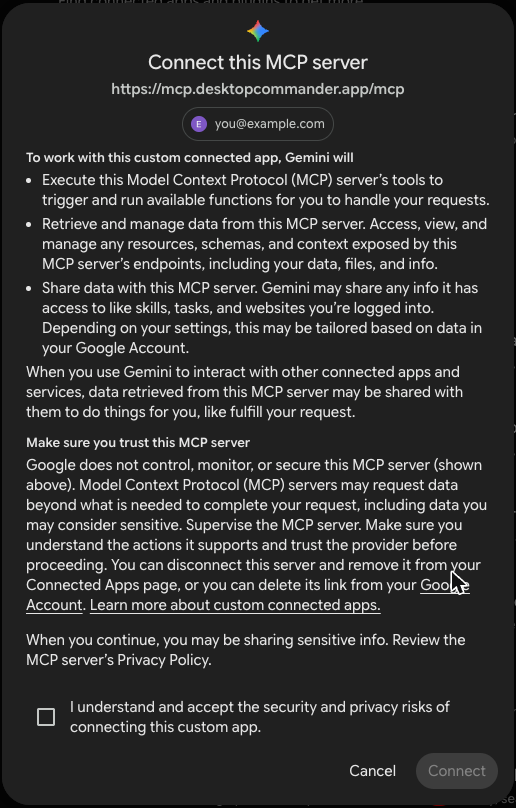
Tick I understand and accept the security and privacy risks and click Connect.
On Link your Google Account and [Custom] Desktopcommander account, scroll down and click Agree and continue.
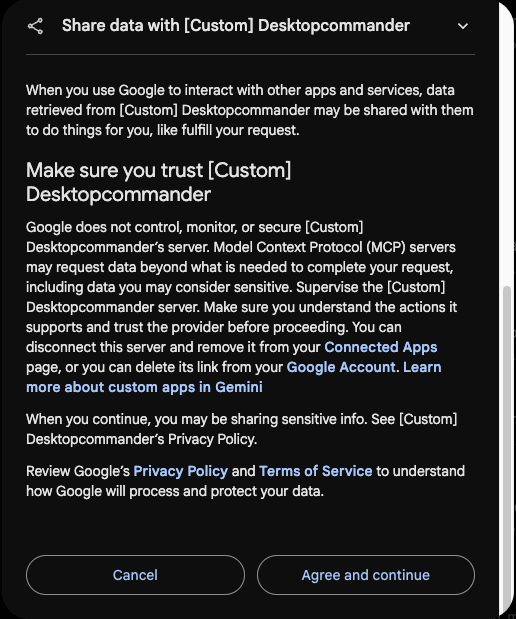
Finish the next steps without long breaks. Google's linking session expires after a few minutes. If you see Session token is expired, start again from + Custom. Your computer stays connected, so the second try is quick.
Step 4. Sign in to Desktop Commander
Click Continue with Google or Continue with email.
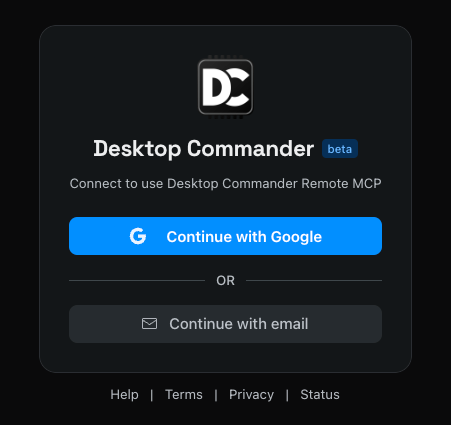
Step 5. Connect your computer (first time only)
Skip this step if your account already has a computer connected.
- Pick your system (Windows, macOS or Linux) and click Copy setup command.
- Paste it into Terminal (macOS, Linux) or PowerShell (Windows) and press Enter. Keep that window open.
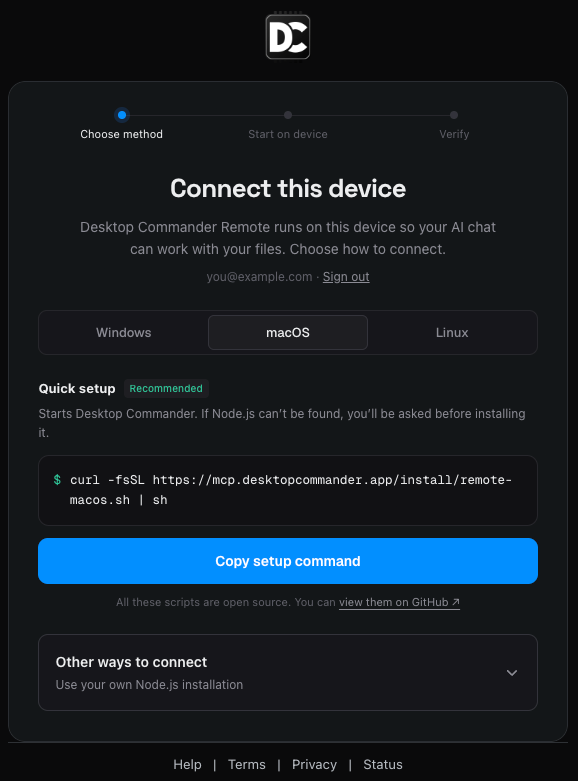
macOS:
bash
curl -fsSL https://mcp.desktopcommander.app/install/remote-macos.sh | shWindows (PowerShell):
powershell
irm -ErrorAction Stop https://mcp.desktopcommander.app/install/remote-windows.ps1 | iexAlready have Node.js 22.12 or newer:
bash
npx @wonderwhy-er/desktop-commander@latest remote- A new browser tab opens. Check that the code matches the one in your terminal, then click Verify device.
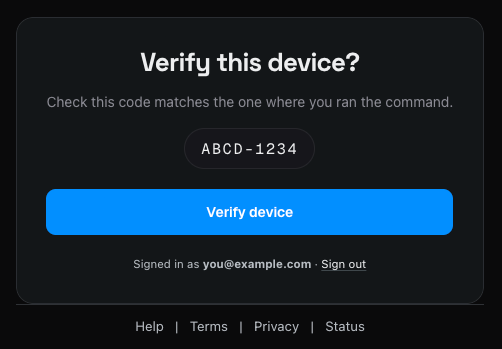
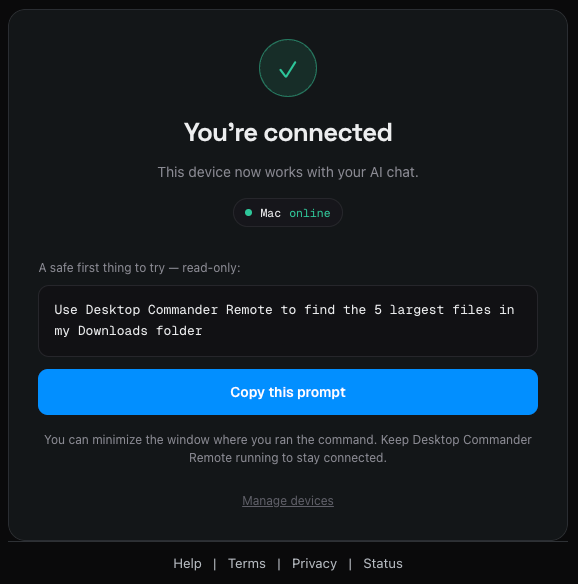
- You'll see You're connected with your computer shown as online.
Step 6. Allow Gemini and save the connector
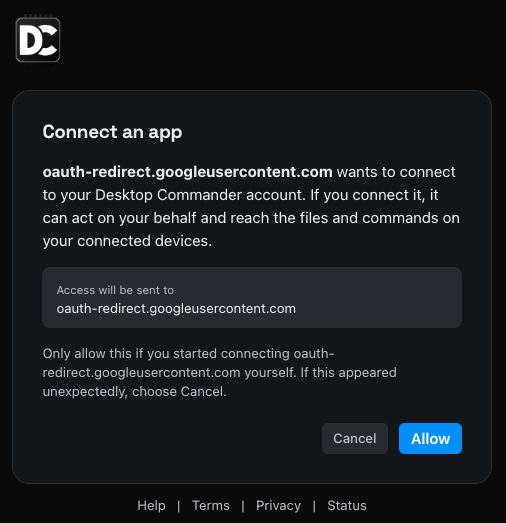
Go back to the first tab. Desktop Commander asks to connect oauth-redirect.googleusercontent.com, which is Gemini. Click Allow.
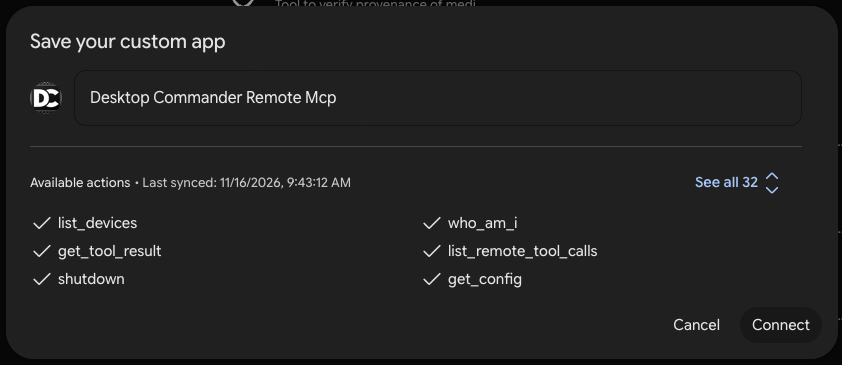
Gemini lists the available tools. Click Connect to save the connector.
Step 7. Use it in a chat
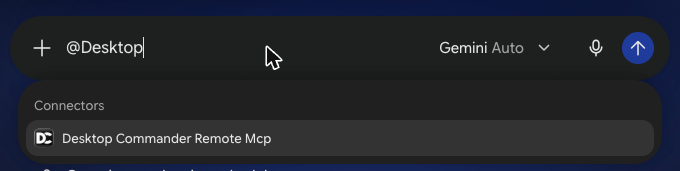
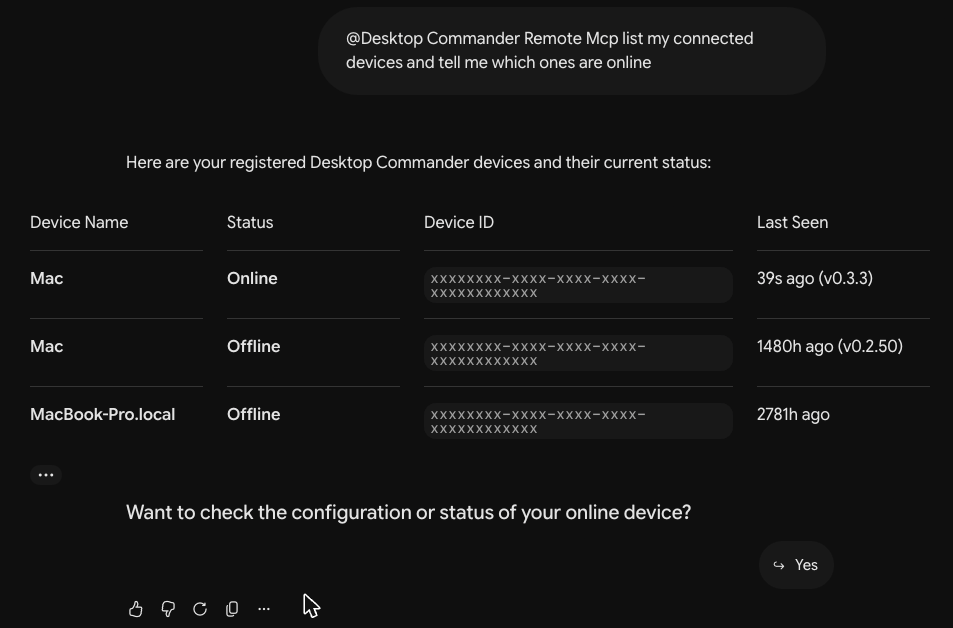
Start a new chat, type @, pick Desktop Commander Remote Mcp and ask your question.
Prompts to try first (read-only):
- List my connected devices and tell me which ones are online
- Find the 5 largest files in my Downloads folder
Good to know
- Custom connectors don't appear under Installed on the Connectors page. You'll find them in Settings → Developer Mode → Choose an app.
- You don't need Developer Mode to add the connector. It only adds debug views (event log, tool schemas).
- Keep the setup window running on your computer. If it closes, the device goes offline. Run the setup command again to bring it back.
Troubleshooting
| Problem | Fix |
|---|---|
| Session token is expired after linking | Google's link timed out. Start again with the Custom button. |
Setup command fails with EACCES or EEXIST under ~/.npm (macOS) | The npm cache has files owned by root. Run sudo chown -R $(id -u):$(id -g) ~/.npm, then run the setup command again. |
| No Custom button, or connecting is blocked | Your Workspace admin has restricted it. Ask the admin or use a personal account. |
| Gemini says the device is offline | Run the setup command again and keep the window open. |